Showing posts with label create free PDF files. Show all posts

Wednesday, March 18, 2020

Resources for working with PDF files on Chromebooks


PDF files are used everywhere and can be used on Chromebooks. Here are some resources:

Adobe Android apps work very well on Chromebooks and there are other Android apps for working with PDF files:
https://drive.google.com/open?id=1gyZbgMwMbLBuPYb3NybSHnVus3jKsA81

- Xodo PDF Reader and Editor https://play.google.com/store/apps/details?id=com.xodo.pdf.reader&hl=en_US

- PDF Editor – https://play.google.com/store/apps/details?id=com.kmo.pdf.editor

- PDF Editor – Sign, Create, Edit https://play.google.com/store/apps/details?id=com.offiwiz.pdf.editor.reader

- Write on PDF (annotate, not edit) https://play.google.com/store/apps/details?id=com.samsung.android.spdfnote


Managing Android apps on Chromebooks: https://support.google.com/chrome/a/answer/7131624

Android on Chromebooks! Here are some resources and apps to check out http://educationaltechnologyguy.blogspot.com/2017/02/android-on-chromebooks-here-are-some.html


Different ideas:
1. annotate a pdf and then put the pdf back in the teachers google drive for grading. Many of them are using google classroom so it might just be a learning curve.
There are a variety of web apps for working with PDFs

Kami works well, especially if you connect it to your Drive account. Here is more info: http://edtechteacher.org/annotating-pdf-files-on-chromebooks-with-kami-from-avra/ It is the mostly highly recommended tool for this.
Kami YouTube channel - https://www.youtube.com/user/notablepdf


Q: How can I or students edit a PDF file?
A: Two ways you can do this:
Convert the PDF into a Word or Google Doc format for editing
http://www.pdfconverter.com/free-pdf-conversion-online/
https://www.freepdfconvert.com/
https://docupub.com/pdfconvert/

Monday, July 1, 2019

CleverPDF - 27 Powerful and Free Online PDF Tools


PDF files are extremely useful and ubiquitous. There are ways to view them on any device and any platform. Sometimes you need to convert a PDF file to another format or you want to convert another file to a PDF file.

There are a lot of resources out there to do this. CleverPDF is one of them. CleverPDF offers 27 Powerful and Free Online PDF Tools including conversions and modifying PDF files. It is available in 20 different languages and there is a support and help page.


Here are some More Resources for working with PDF Files (lots here, plus more listed below)

Free online PDF converter - EasyPDF - secure and free


.

Friday, May 11, 2018

PDF Candy - free online PDF editor and converter - lots of great features


PDF Candy is a site I just found out about from a colleague from up in Canada. It is an amazing collection of free, online tools to edit and manage PDF files.

PDFs are one of the most common file formats used to share data and documents. Being able to edit and manipulate them is important. PDF Candy provides a robust, free, online tool set for working with PDFs. There is even a Windows download app.

It is available in 15 different languages and is very easy to use.

You can convert from PDF to formats like Word, JPG, DOCX, PNG and more and you can convert Word, JPG, DOCX, HTML, EPUB, MOBI and more to PDF. In addition, you can compress, merge, split PDFs, delete and rearrange pages, extract images and text and other tools.


Check it out and see if it is useful to you. More PDF resources can be found here.


Related:

PDF tools, resources, and much more


..

Thursday, March 2, 2017

Tools to work with, annotate, create and convert PDF files


PDF, or Portable Document Format, files are ubiquitous these days. The format is a great way to share files since every operating system, including mobile devices, has free software available to read the files. Creating these files, manipulating them, marking them up, editing them, and converting them to other formats are all needed activities for many people. Here are some great resources to use with PDF files. 

Wednesday, March 11, 2015

Cometdocs - free file conversion - online and Chrome Extension

Cometdocs logo


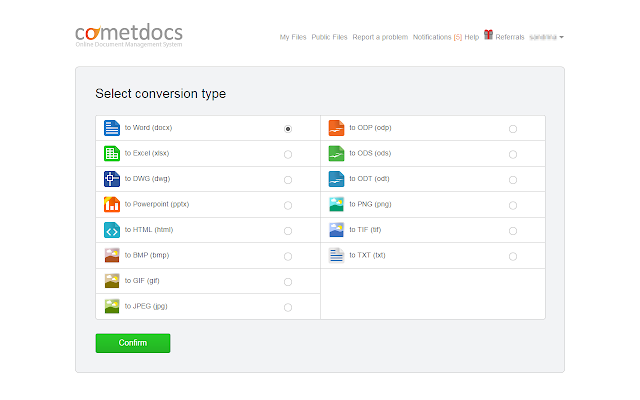
Cometdocs is a free online file converter. It converts PDF files to Word, Excel, PowerPoint, AutoCAD, HTML, and other formats. You can also create PDF files from almost any file format, including XPS, Publisher and more. You can also store your documents online and share them. You get 2GB of storage with the free account. 


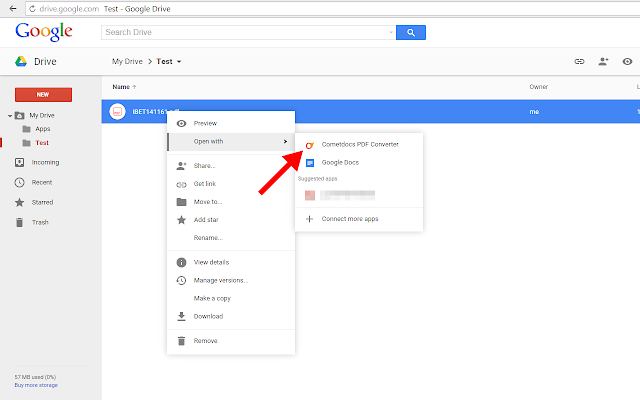
There is also a Chome extension, Cometdocs PDF converter:  https://chrome.google.com/webstore/detail/cometdocs-pdf-converter/olgfoomjdkeijllelookodfgiogbdoch/

These are some of its main highlights of the Chrome Extension:
  • Converts files right inside Google Drive, no need to leave the service.
  • Converts PDF to Word, Excel, PowerPoint, Text, Images, OpenOffice (not just PDF to Word like Google Drive) formats.
  • Unlike Google Drive itself, files larger than 2 mb can be converted. No limit on page numbers.
  • There is a limit for free users of five free conversions per week, but this is higher than most similar services. 
  • Images and documents in Microsoft Office Formats (not Google Docs formats) can be converted to PDF as well, without leaving the service.

Users can use the Chrome app with the free account as well. The only difference between the free and the premium account is in the number of conversions per week (free users have 5 available conversions per week), which is more than other similar services offer.

The conversion quality remains the same, but the conversion of scanned documents is reserved for Premium users only. You can find more details on account types here - http://www.cometdocs.com/user/subscriptions


Related:


More Resources for working with PDF Files


--

Monday, May 14, 2012

PDF Converter - free online PDF conversion


PDF files are everywhere. Every operating system and every device I know of can read them. They are a great way to share and publish files since they can be locked, watermarked, and viewed on pretty much any device or OS. Most office suites allow you to save files as PDF formats and there are some other great tools for creating them.

PDF Converter is a free site that allows you to convert PDF files to DOC, XLS, or PPT file formats and will also let you create PDF files from almost any file format.


It's very easy to use and there is nothing to download or install on your computer. Simply select the conversion you want to do, upload your file, enter your email address and when the service has finished your conversion, you will get an email with the link to the converted files. There is a file upload limit of 2MB, but there is no limit on how many conversions you can do.

Try it out: http://www.pdfconverter.com/free-pdf-conversion-online/


Related:

PDF - interesting infographic and lots of resources for using them


Wednesday, March 16, 2011

Lots of PDF resources - print, markup, convert and more


PDF, or Portable Document Format, files are ubiquitous these days. The format is a great way to share files since every operating system, including mobile devices, has free software available to read the files. Creating these files, manipulating them, marking them up, editing them, and converting them to other formats are all needed activities for many people. Here are some great resources to use with PDF files. 


PDF Readers:


Adobe Acrobat Reader - http://get.adobe.com/reader/ - read pdf files. 

Foxit Reader - http://www.foxitsoftware.com/pdf/rd_intro.php - read pdf files.

Google Docs and Google Chrome can also display PDF files. 


Google Docs, the free service from Google, can view PDF files. Another nice feature, is that if you upload a PDF file to Google Docs, you can have it convert text from a PDF into a Google Doc.  It will extract the text but not individual images. 


Creating the PDF file is very simple. I create the original file using a word processor or presentation program and then convert it to a PDF file using CutePDF Writer. CutePDF Writer is a free utility that installs onto your computer like a printer. You create your original file and then “print” it. Instead of selecting your printer, you select “CutePDF.” The software will convert the file to PDF form and ask you were you would like to save it. You can also use it to “print” any file, including web pages, to a PDF file. I use this often to save web articles for reading later.

There is also a free application available that allows you to merge multiple PDF files into one PDF file.

Quick PDF tools is a great resource. The software is easy to install and very easy to use and the website has easy to follow instructions. You simply select the PDF files you want to merge in Windows Explorer, right click, select QuickPDF tools, and select merge. You can then order them in the window in the order you want them merged, and then select merge. It is really that easy.


PDFtoWord is a free site that converts PDF files into Word documents.

This comes in handy when you have a PDF file that you need to edit and change and you don't have the proper, and expensive, software.

It's very easy to use. Go to the site, select a file from your computer to upload and convert, and enter an email address where you want the Word document sent. That's it.

I used it to convert a 9 page, 3MB PDF file and it took about 15 seconds to upload. The converted file did not show up in my email inbox until later that evening. (it was graphic intensive too).

The converted file was pretty accurate with almost no errors, which I manually fixed in a few minutes. The quality of the conversion was really good.

Remember also that it will not be able to convert a file that was only an image, like a file that was scanned. It will simply put that image as an image in a Word file.

This is really handy for taking files that were created with a print conversion (like CutePDF) or from Acrobat and making them editable in Word. If someone created the PDF file by scanning a document, this will not convert it back since the scanning process converts everything into one image.

It's not bad for free. You definitely don't want to use this if you need the file converted immediately. You will want to plan ahead due to the delay in getting the file converted and the fact that you may have to do some manual editing of errors.


PDF Online is an online service that has both fee and FREE services relating to PDF files.

One of the free services is "Doc2PDF" that will convert a document to a PDF file. You can only convert files up to 2GB (to convert files up to 10GB you need to subscribe to the premium version).

This is good for people who don't convert many files to PDF. If you want to convert a lot of files to PDF, I suggest CutePDF.

The other free service is "PDF to Word" which converts your PDF documents to RTF Documents for viewing and editing Word. It works very well and fast. After uploading your file, it will convert it and then leave a link for you to download with the converted file.

Another way to do this is with PDF2Word.


Free My PDF is a very useful site for those of us that deal with PDF files a lot. Many PDF files that are unlocked (you can open and read them) sometimes have restrictions on printing or copying text from the file. Free My PDF can remove those restrictions.

It is very easy to use. Go to the site, select the file you want modified, and click "Do It". You will then be able to download the unlocked file.

If you need a password to view the PDF file, you can not use this service. It also can not be used for illegal or immoral uses. In other words, you can't use this to violate copyright laws or take someone else's work.

Sometimes, these copy and print restrictions are in a file completely by accident because the person creating the file forgot to change the settings. Other times, you simply need to print or copy something for your own use. For example, a PDF file from a financial institution to me, with information about my account, would not let me copy or print. I wanted to copy part of it for my own records and print a hard copy for easy reference. I used Free My PDF to do that. No laws or ethics violated.

Try it out.


Here is the legal info at the bottom of the page:
An important note: There are many valid reasons to want to remove a password from a PDF (Ask your favorite lawyer about copyright and fair use, or Google it), but there are also many bad and illegal reasons. YOU MAY NOT USE THIS SERVICE FOR ILLEGAL PURPOSES. You also should not use this service for immoral puposes (it's not always the same). The owner of this site takes NO RESPONSIBILITY for the files processed on the site or generated by it, or anything else related to your usage (legal, technical or otherwise). Use it at your own risk.
The writer of this blog also takes no responsibility for your use of Free My PDF.


So, there are a lot of great resources for creating and utilizing PDF files. PDF files are great to use because anyone can read them without needing any special software. 


Monday, May 17, 2010

PDF Online - free PDF Services


PDF Online is an online service that has both fee and FREE services relating to PDF files.

One of the free services is "Doc2PDF" that will convert a document to a PDF file. You can only convert files up to 2GB (to convert files up to 10GB you need to subscribe to the premium version).

This is good for people who don't convert many files to PDF. If you want to convert a lot of files to PDF, I suggest CutePDF.

The other free service is "PDF to Word" which converts your PDF documents to RTF Documents for viewing and editing Word. It works very well and fast. After uploading your file, it will convert it and then leave a link for you to download with the converted file.

Another way to do this is with PDF2Word.

PDF files are very handy for sharing files and posting files online. The ability to create them or edit them is very useful for teachers.


Wednesday, June 3, 2009

Free PDF creation and merging


Portable Document Format, more commonly known as PDF, is a great standardized format to use for files. Adobe Acrobat is one of the premier PDF creation and editing programs available, but it is expensive. There are free alternatives for teachers to use.

I post all of my files for students as PDF files so that they can not be edited. Also, everyone can get a free PDF reader, such as Acrobat Reader to view the files so I don’t have to worry about a student not having the software to view the file.

Creating the PDF file is very simple. I create the original file using a word processor or presentation program and then convert it to a PDF file using CutePDF Writer. CutePDF Writer is a free utility that installs onto your computer like a printer. You create your original file and then “print” it. Instead of selecting your printer, you select “CutePDF.” The software will convert the file to PDF form and ask you were you would like to save it. You can also use it to “print” any file, including web pages, to a PDF file. I use this often to save web articles for reading later.

There is also a free application available that allows you to merge multiple PDF files into one PDF file.


Quick PDF tools is a great resource. The software is easy to install and very easy to use and the website has easy to follow instructions. You simply select the PDF files you want to merge in Windows Explorer, right click, select QuickPDF tools, and select merge. You can then order them in the window in the order you want them merged, and then select merge. It is really that easy.

I have used both applications to create PDF files from PowerPoint presentation handouts and then merge those PDF files with downloaded PDF files to create a single file guidebook that I use when teaching Google for Educators.

I love the ability to save any file as a PDF file. I use it to post files to my class website for students to use, as well as to make backup copies of files that I know I will be able to open on any computer, regardless of the operating system or software.

Wednesday, April 29, 2009

Merge PDF files for free


I have been a long time user of CutePDF Writer to create PDF files from other files like Word, PowerPoint, Excel, and even webpages. It simple installs as a "printer" on your computer and you select that instead of your actual printer.

Today, I found out how to merge multiple PDF files into one PDF file. The best news, it's free!

Quick PDF tools is a great resource. The software is easy to install and very easy to use and the website has easy to follow instructions. You simple select the PDF files you want to merge in Windows Explorer, right click, select QuickPDF tools, and select merge. You can then order them in the window in the order you want them merged, and then select merge. It is really that easy.

I ended up using it today to merge 15 different PDF files into one guidebook that I use when teaching Google for Educators. It was easy to do and saved me a lot of time and effort.

Check it out!

LinkWithin

Related Posts Plugin for WordPress, Blogger...