Showing posts with label Microsoft Office alternatives. Show all posts

Tuesday, February 3, 2015

LibreOffice - awesome free Office Suite - gets new UI and lots of updates


LibreOffice is a free, open-source, powerful office suite software that is a great alternative to Microsoft Office. I use it on my home computer when I'm not using Google Drive. It is available for Windows, Mac and Linux and has six applications: Write (word processor), Calc (spreadsheet), Impress (presentation), Draw, Math and Base (database) and there are also extensions and templates available. Draw and Math are excellent for creating drawings and images as well as mathematical equations and Base is an excellent alternative to Access.
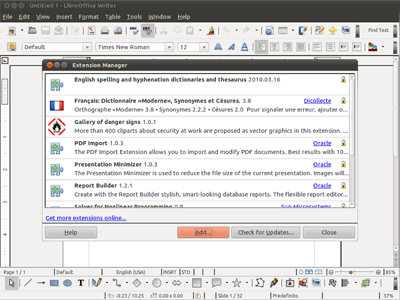
Screenshot 01

One of the great features is that it can open, and save as, files in a variety of formats including Microsoft Office (multiple versions), PDF, ODF, and more. I have mine automatically set to load and save as MS Office files so that they work at school without a problem.
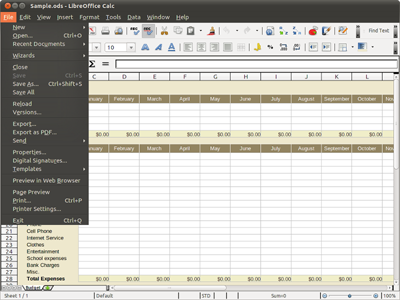
Screenshot Calc

Support is excellent, with a great support site and user forums.

Screenshot Impress

Upgrades to this version include a beautiful new user interface with new menus that are easier to use.

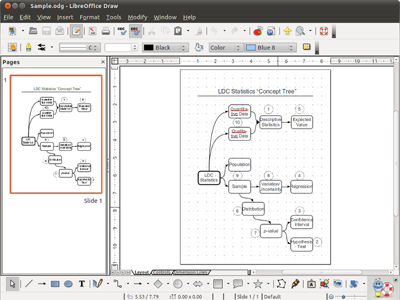
Screenshot Draw

“LibreOffice 4.4 has got a lot of UX and design love, and in my opinion is the most beautiful ever,” says Jan “Kendy” Holesovsky, a member of the Membership Committee and the leader of the design team. “We have completed the dialog conversion, redesigned menu bars, context menus, toolbars, status bars and rulers to make them much more useful. The Sifr monochrome icon theme is extended and now the default on OS X. We also developed a new Color Selector, improved the Sidebar to integrate more smoothly with menus, and reworked many user interface details to follow today’s UX trends.”
LibreOffice 4.4 offers several significant improvements in other areas, too:
  • Support of OpenGL transitions in Windows, and improved implementation based on the new OpenGL framework;
  • Digital signing of PDF files during the export process;
  • Installation of free fonts Carlito and Caladea to replace proprietary Microsoft C-Fonts Calibri and Cambria, to get rid of font related issues while opening OOXML files;
  • Addition of several new default templates, designed by volunteers;
  • Visual editing of Impress master pages, to remove unwanted elements, adding or hiding a level to the outline numbering, and toggling bullets on or off;
  • Better Track Changes – with new buttons in the Track Changes toolbar – and AutoCorrect features in Writer;
  • Improved import filters for Microsoft Visio, Microsoft Publisher and AbiWord files, and Microsoft Works spreadsheets;
  • New import filters for Adobe Pagemaker, MacDraw, MacDraw II and RagTime for Mac;
  • Greatly expanded support for media capabilities on each platform.


Instead of spending hundreds of dollars on office software, download LibreOffice for free. http://www.libreoffice.org/


Related:

Free Alternatives to Microsoft Office

Free Alternatives to Microsoft Access

Why do schools still pay so much for software? Free alternatives to paid software and services.

Google for Educators resources (includes Google Docs)


Thursday, December 11, 2014

Free alternatives to Microsoft Access, including a web based one


Access is Microsoft's well known data base tool. However, it only comes in the higher priced versions of Office and many people don't use Office at all. Here are two alternatives:


clients

1. Grubba - free, web based, easy to use database app. Useful for Chromebook users and others looking for a web based solution. There is also a growing community of users and tutorial videos and support. There are pre-made templates to help you get started too. There are a lot of features, so take a look.


2. OpenOffice / LibreOffice Base - OpenOffice and LibreOffice are free alternatives to Microsoft Office and both have a database tool called Base. It is easy to use, with a lot of great features and support and training resources, including an excellent manual. It also can work with SQL and Access files.
http://www.libreoffice.org/discover/base/
https://www.openoffice.org/

I've used LibreOffice for years and love it and prefer it over OpenOffice.


Related:

LibreOffice - free office suite software

Free Alternatives to Microsoft Office

Why do schools still pay so much for software? Free alternatives to paid software and services.


Friday, February 8, 2013

LibreOffice 4.0 released - better performance and greater interoperability


LibreOffice is a free, open-source, powerful office suite software that is a great alternative to Microsoft Office. I use it on my home computers. It is available for Windows, Mac and Linux and has six applications: Write (word processor), Calc (spreadsheet), Impress (presentation), Draw, Math and Base (database). It works great and the menu functions are similar to Office 97, so the learning curve is easy. It is built off of the same code base as OpenOffice. I happen to like LibreOffice better and think it runs faster.

One of the great features is that it can open, and save as, files in a variety of formats including Microsoft Office (multiple versions), PDF, ODF, and more. I have mine automatically set to load and save as MS Office files so that they work at school without a problem.

Support is excellent, with a great support site and user forums.
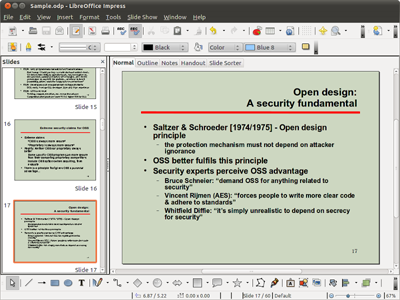


Libreoffice has just been upgraded to version 4.0 and offers leaner, faster performance, greater interoperability between different file formats such as DocX and RTF documentsOther new features  include an Android app for controlling presentations, UI upgrades and a performance improvements. You can also attach comments to text in documents, import Visio and Publisher files, get themes, ink annotations and over 1500 other changes and improvements.


Instead of spending hundreds of dollars on office software, download LibreOffice for free. http://www.libreoffice.org/


Related:
Free Alternatives to Microsoft Office

Why do schools still pay so much for software? Free alternatives to paid software and services.

Google for Educators resources (includes Google Docs)


Monday, May 21, 2012

KingSoft free office suite software


After posting about SSUITE free office software, I found out about KingSoft Free Office Suite Software on Google+.

KingSoft Free Office Suite Software includes word processor, spreadsheet, and presentation software and is easy to use, looking very similar to Microsoft Office. It is compatible with Microsoft Office file formats, as well as other file formats, and Microsoft Office can open KingSoft Office files without any additional software. It also features a built-in PDF converter and multiple document tabs.

KingSoft Office is also available for Android. Kingsoft free Office for Android allows you to CREATE, VIEW and EDIT all documents used by Microsoft.

This is another great option for teachers and students to have free software tools.


Related:

Free Alternatives to Microsoft Office


SSUITE - free office productivity software


SSUITE is free office productivity software that can be downloaded and used on any Windows system. Software includes: Desktop Office Suite (word processing, spreadsheets), money managers, invoice software, web browser, image editing, email, utilities, and much more.


There is some great software here, all free, that can be of great use in education.

Check out the full list of software here: http://www.ssuitesoft.com/software.htm

Check it out: http://www.ssuitesoft.com


Related:

Free Alternatives to Microsoft Office

Google for Education Resources - includes Google Docs, free online office software

LibreOffice - great free office suite - free, easy to use


Monday, April 9, 2012

QuickOffice - essential app for mobile devices


One of the things that most people want or need to do with their mobile devices is to be able to create, view and edit office documents (word processing, presentations, spreadsheets). Google Docs works great on Android, and ok on iOS, but sometimes you need to view/create/edit office documents offline or using the actual file.

QuickOffice is an excellent choice for this task. It is available for Android, iOS, Symbian and webOS, with HD versions for Tablets. The free Quickoffice Lite allows you to view documents, but most people will want the full Pro version ($14.99 for smartphone, $19.99 for tablet). There are deals and specials at different times, and the Amazon App Store for Android has offered it as a free download in the past.

QuickOffice Pro allows you to create, edit, access, and share your Microsoft® Office documents, spreadsheets, and presentations - anytime, anywhere. It also allows viewing of PDF files. TheConnected File Manager offers integrated access to Google Docs™, Dropbox, Evernote, Catch, Egnyte, Huddle™, Box, SugarSync, and MobileMe™, so you can access, share and manage files on your device and the cloud.

It turns your mobile device into a full fledged business device. I can work on files anywhere and then have them saved and uploaded to my Dropbox account, ready for me to use on my computer later. With it, I can create, view or edit any file that I need to. It's easy to use and works great. I haven't had any compatibility issues or conversion issues in over 6 months of using it.


I feel that it is a must have app for all mobile devices.

QuickOffice: http://www.quickoffice.com/


Related:

Android for Education resources and apps
Essential Apps and Installs for Windows, Chrome, Android

Alternative: Documents to Go: http://www.dataviz.com/products/documentstogo/index.html


Disclaimer: I did not receive any compensation for this article. 


Wednesday, February 15, 2012

LibreOffice - great free office suite - gets upgrades


LibreOffice updates to version 3.5, brings grammar check, bigger Calc workbooks, and more

LibreOffice is a free, open-source, powerful office suite software that is a great alternative to Microsoft Office. I use it on my home computers. It is available for Windows, Mac and Linux and has six applications: Write (word processor), Calc (spreadsheet), Impress (presentation), Draw, Math and Base (database). It works great and the menu functions are similar to Office 97, so the learning curve is easy. It is built off of the same code base as OpenOffice. I happen to like LibreOffice better and think it runs faster.

One of the great features is that it can open, and save as, files in a variety of formats including Microsoft Office (multiple versions), PDF, ODF, and more. I have mine automatically set to load and save as MS Office files so that they work at school without a problem.

Support is excellent, with a great support site and user forums.

The upgrades include built-in grammar checker and a real time work count window for Writer, ability ti embed multimedia in Impress, and increasing Calc's sheet count up to 10,000 per workbook. That's a spreadsheet I do not want to work with. There are quite a few other upgrades too.

Instead of spending hundreds of dollars on office software, download LibreOffice for free. http://www.libreoffice.org/


Related:

Free Alternatives to Microsoft Office

Why do schools still pay so much for software? Free alternatives to paid software and services.

Google for Educators resources (includes Google Docs)


Tuesday, April 12, 2011

Prezi - the zooming presentation editor


I've been using Prezi for a while now, using it for classroom presentations and presentations at conferences. 

I found Prezi very easy to use and fun. You can easily create a presentation from scratch, adding text, images, video, links and more. It is very easy to modify them all also with just a click. You can also import slides from a PowerPoint file. The presentations are very dynamic and you can really make them more visually engaging and interesting than PowerPoint or Keynote. It also moves people away from those dreaded bullet points. 

The site also has great help resources, including videos, a help site, and more. There is a community of users on Twitter, Facebook, and the Prezi forum also. 

You can get free accounts for educators or the public. There are limits, but they haven't affected my use at all.

You can create your Prezi's and present them online, or download them for offline use. You can also use Prezi desktop software (with a paid account) to create Prezi's offline.

There is even Prezi Meeting, where you can edit and show Prezi's with up to 9 other users. Work collaboratively on a Prezi or use it as an online meeting platform. 

It's easy to get started and there are a ton of Prezi's that you can look at as inspiration. 

You can make your Prezi's private, public (viewable by everyone) and public with the ability to copy. 

Prezi is fun, easy to use, and create's some great presentations. Try it out. 

Example of one of my early Prezi's (overview shot): (done with minimal experience with Prezi)

Here's the link to the actual Prezi: Google for Educators 


Tuesday, January 4, 2011

Sliderocket - online presentation software


Sliderocket is something I've heard about but never used until today. It is a standalone site but also is a web app in the Google Chrome OS Store, so I started trying it out.

Sliderocket is a free online presentation software (similar to an online version of PowerPoint or Google Docs) that has some really great features. You can create a new presentation or even upload an existing PowerPoint presentation to the site. You can easily add photos from your library or from the internet with Flickr as a choice. Videos are simply installed and embedded. Slide transitions are supported along with allowing viewers to comment on each slide. You can embed Twitter feeds as well as a variety of other features.

Sliderocket has a very good demo/tutorial that walks you through the steps of using it. There is also a good help section and plenty of people using it that post information online.

I found it easy to use and very powerful and will be using the Chrome OS webapp version quite a bit now.

It's very useful for education. Students can interact and collaborate on presentations. Teachers could post presentations and have students comment on the slides. The presentations are also more interactive and have some cool features that PowerPoint doesn't have.

You can even integrate SlideRocket into your Google Apps account.

There is a free version with some limitations and a fee-based version with more features.

Tuesday, August 11, 2009

Alternatives to Windows, Mac, Linux and online applications | AlternativeTo.net


AlternativeTo.net is a great resource for any computer user. The site lists alterantives to popular software applications. Many of the alternatives are free, some are not. The great thing about the site is that it lists things by category so it is easy to find an alternative to what you are using now.


Maybe you want a free version of something, such as replacing Microsoft Office with OpenOffice, or you just want to try some different types of software. Maybe the software you are using now doesn't do everything you need it to do. Whatever the case, AlternativeTo.net can help.

The listings are very comprehensive and include a great description. You can sort results by tag, license, or platform. They have alternatives for Windows, Mac, Linux, and even for mobile applications.

Below is a listing of alternatives to Microsoft Office:


Monday, July 13, 2009

Free Alternatives to Microsoft Office


Microsoft Office is the most widely used office productivity suite, but it isn't the only one. It used to come included with many computers, but nowadays it is only a trial version. This means that people are having to pay for Microsoft Office in addition to the cost of a computer. Many people are still using Office 2003, which Microsoft will stop supporting in the future. With budgets a major issue, as usual, schools, teachers, and students can get free alternatives to Microsoft Office.

There are some free alternatives out there. The two I use are Google Docs and Openoffice.org.

Google Docs, detailed more here, is great for online collaboration of documents because you can share the documents with others. Everything is hosted online, although there is an offline version. It is great for students because their documents are stored online and they can access them from any internet accessable computer. Google Docs includes word processing, spreadsheets, and presentation applications. Because it is web based, you can use it on Windows, Mac, or Linu. And, it's free.

Openoffice.org is free software from Sun Microsystems. Unlike Google Docs, Openoffice is software you download to your computer and the files reside on your computer. (for ideas on syncing files among multiple computers, check out SugarSync).

Openoffice is a fully functional office productivity system that rivals Microsoft Office in many ways and includes applications for word processing, spreadsheets, presentations, databases, formulas and graphics. I have found it really easy to use coming from Microsoft Office since the menu's and commands are very similar. Openoffice can save files in many formats, including Microsoft Office formats so that you can use them on other computers without a problem. Openoffice is available in multiple languages and for Windows, Mac, and Linux.

Google Docs and OpenOffice can save students, faculty, and schools a fortune in licensing fees and allow better collaboration and productivity.

LinkWithin

Related Posts Plugin for WordPress, Blogger...