Showing posts with label daily technology. Show all posts

Monday, June 6, 2022

World Productivity Day is Monday June 20th - here is how I use Evernote to be highly productive

 World Productivity Day is Monday, June 20th. Here is how I stay productive and organized using Evernote and some other tools. 


I am a huge Evernote user and fan. I started using Evernote back in 2009, have been an Evernote trainer, used the beta of Evernote for Education with my students in 2011, and am an Evernote Expert. I use Evernote everyday for work and personal use and it has made me more organized, productive and efficient.

Evernote relaunched a couple of years ago with a whole new code-base to make it easier and faster to deploy to multiple platforms and provide updates. They also added some great new tools and features that help you be more efficient, organized and productive. It is more than just a note-taking tool - it can be used as your second brain, task list, project management, class notes - including text, audio, attachments, and handwritten notes, going paperless and so much more. It is available on Windows, Mac, iOS, Android and the Web. My daily work devices are a Chromebox, Chromebook and Pixel 5 smartphone. I use the web version of Evernote and then have the Android app installed with offline sync on the Chrome devices and also have my notes offline synced on my phone.


Here are some of the new features and how I use them to be productive, and organized while managing work and personal projects. 

Home


Home is your dashboard. In fact, many users used to create their own notes as a dashboard and Evernote did a contest for the best one. This led them to develop Home.

Home brings all of your information to one place. Notes and Notebooks, recent notes, shortcuts, tasks, scratch pad and much more. You can customize what you see on your Home with a variety of widgets.  Home is a brand-new way to start your day in Evernote; a one-stop dashboard that puts the information you need front and center—neatly organized and instantly available—so you can stay on top of your day without feeling overwhelmed. 
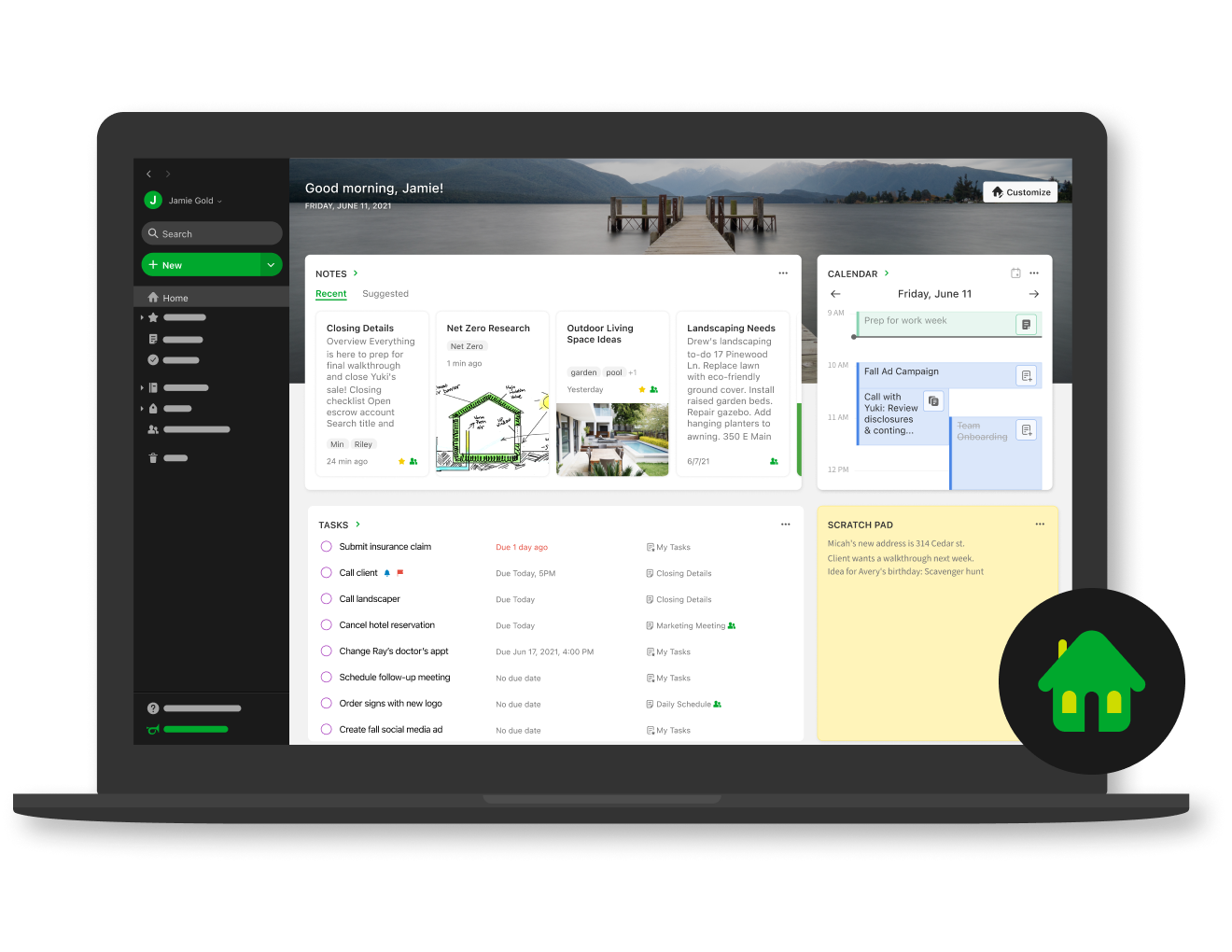


I have Evernote web open to Home when I log into my Chromebook and I can see my schedule and tasks and access all of my frequently used notes. I can access recent notes, shortcuts to most used notes, see my calendar and all of my tasks that are in different notes, and take quick notes in the scratch pad. Start my day already organized and stay that way throughout my day. 

I always have one tab open to Home. 


Tasks is another new feature. You could always create task lists with checklists and checkboxes, but they were only in the note you created them in. Tasks lets you set reminders and due dates, tags and even assign to someone, and see all of your tasks in one place, no matter what note the task lives in. There is also a Tasks widget for Home so you can see your tasks in one place. 


I create tasks in different notes as needed, from meeting notes to project work, and can see them all on my Home page. I also set reminders for them so I don't forget to work on them. 

Home is my starting point, but I also have 3 other Evernote notes open as separate tabs throughout the day. One is for Project Management and has all of my projects listed, with Internal Links to the main note for each project. This note lets me see all of my ongoing projects in one place, with a quick note about each, with the internal links connecting me to the details project management note.


My HOME setup (redacted).

Notebooks on the left, Recent notes across top, 3 scratchpads on left for quickly needed information and quick notes. 

Shortcuts to most used notes and then Tasks in center.


Recently captured web clips for quick access, and my Google calendar at bottom right for quick looks and for quickly accessing and creating notes for meetings. 


I start my day by checking my Tasks list and then going through my Project Management note and all of my projects, updating the status, adding notes, adding attachments or emails, and keeping everything organized. In addition to my Project Management note that I keep open all day, I also have a note that has all the quick reference material I need to access each day, from short reference notes, to links to other notes with more detailed information. The third tab is a quick reply note - it has quick replies for resources, replies and other information I share with my team and coworkers so I don't have to manually type out the same notes over and over again. 

The detail project management notes having all the information, tasks, notes, file attachments, emails and more in one place for me to track and manage the projects. I have 10 daily projects and over 20 others going on at once and can track and manage them all in Evernote. 

I also have external links in notes, including to Google Drive/Docs files, websites and more. I like to add attachments as PDF files (save other file types to PDF first and then attach) because I can view the entire PDF in the Evernote note itself and also Annotate PDFs and images right in Evernote. This makes accessing and viewing these files much easier and faster. 

I use notebooks and notebook stacks to organize my notes by work or personal, topics, projects, etc. This allows me to find and access the notes I need, when I need them. I use some tags, but Evernote's powerful Search feature makes it easy to find notes by title, words in the note (including in images!) and more so I can find what I need, no matter where it is stored. 

I also have Connected Evernote and Google Calendar to make my day even more organized and efficient. There is a widget for Home where I see my Google calendar, and I have it set so Evernote prompts me to create a note for each of the calendar events, like notes for meetings.  can link notes with calendar events so ideas and decisions stay connected to the people, places, and activities that sparked them.

I use the Web Clipper to capture web pages or online resources for reference, later reading or to keep for projects. It is easy to use and clips everything on a site, or you can just clip the simplified article. 

I also use Email to Evernote to send work emails to Evernote for easier recall and to include with related project materials and scan documents into Evernote with my scanner or even my phone.

All of my notes are saved in the cloud and synced across your devices. Windows, Mac, iOS and Android also have the ability to sync notes offline for access anywhere. (for Chromebook users, install the Android app for offline access). I can access and edit them anywhere, on any device. There are widgets for mobile as well. 

Evernote Tips and Tricks Series 

Evernote - new and improved and a great app for Education (and more)


More Productivity Resources:

Productivity and Organizing - Resources, Tips and ideas for being more productive and organized 


Looking for help with using Evernote? I'm a certified Evernote Expert. Contact me for help: daveandcori at gmail dot com. 


.

Monday, March 26, 2018

Acer Chromebook Tab 10 - the first Chrome OS tablet is here, and it's great!


Acer and Google have just announced the first Chrome OS tablet, the Acer Chromebook Tab 10. Works and managed like a Chromebook, but in tablet form.

This is a great device for schools looking for a tablet device, with a stylus and Android apps, that is easy to deploy and manage. It uses the same management license as Chromebooks and is managed in the same way. It also has a full desktop browser, removing the limitations of mobile browsers.


It is mobile, lightweight, touch and easy to use. Using Chrome OS makes it easy to deploy, manage and share with others. It has dual cameras, an integrated EMR active stylus, multimedia features, note taking and handwriting apps, educational apps (Chrome and Android) for K-3, STEM, video, multimedia and accessibility apps and features. It has a textured surface, similar to the Acer C738T, making it easier to carry, and less likely to be dropped.

Performance is fast and smooth, handling over 15 tabs and 5 apps during my testing time and the stylus is amazing, with no noticeable lag, allowing me to take handwritten notes effortlessly, as well as annotate items.

  • First tablet running Chrome OS designed for education, promoting engagement and collaboration. 
  • Chrome Education License support allows central and remote management of a large number of devices. 
  • Included Wacom® EMR stylus pen for natural writing and drawing. 
  • Stylus is battery-free, slips into a handy dock on the tablet and replicates the usage, accuracy and size of an ordinary pen. 
  • Planned support for Google Expeditions AR (augmented reality) to enable immersive learning experiences. 
  • Full Google Play support, giving teachers and students access to educational Android apps curated by administrators. 
  • All-day productivity with up to 9 hours of power from the lithium-polymer battery.

Specs:
  • MSRP: $320 available in April in US.
  • Operating system Chrome OS with Android support through Google Play
  • Display 9.7-inch QXGA backlit LED, 2048x1536
  • Processor OP1 platform
  • Storage 32GB eMMC
  • Expandable microSD
  • RAM 4GB
  • Rear camera 5 MP
  • Front camera 2 MP
  • Connectivity 2x2 MIMO 802.11ac Wi-Fi
  • Bluetooth 4.1
  • Ports USB 3.1 Type-C
  • Combo headphone/microphone jack
  • Battery 34 Wh (Up to 9 hours)
  • Stylus Wacom EMR (included) With onboard housing
  • Software Support for Chrome Educational licensing
  • Planned support for Google Expeditions AR
  • Dimensions 172 x 238.8 x 9.98 mm 
  • 550 g
  • Colors Cobalt Blue

Related:

Tuesday, May 10, 2016

Technology I use on a Daily Basis - 2016 Version


In the past, I've written about the technology I use on a daily basis (see bottom of page for links).

Here's my updated version for Spring, 2016.

I am a K-12 Education Strategist for CDW-G. In this role, I work with schools on selecting and implementing technology solutions to improve teaching and learning. I do a lot of research on best practices in education and technology and do a decent amount of traveling.

I'm a huge user of Google Apps and Evernote. They are my main work, and personal tools, and all of my devices work with them. Without these, I'm stuck. I also back them both up.

My day typically consists of email conversations and support with our account managers and customers, Google Hangouts with customers providing support, advice, strategy planning, training and professional development, and doing online research, as well as creating tools and resources, like presentations and reference materials. If I am traveling, I only bring my smartphone and my Acer Flip Chromebook and am able to do everything I need to with them. I have Citrix for my Chromebook so I can remote in to our system and access everything I need, including a Windows desktop.


My personal smartphone is an LG G4 running Android. I love it. I can do anything on it - email, web browsing, Google Apps, Evernote, messaging, photos, musics, etc. I is my go-to device. I have an spare battery and external battery for traveling, but the battery life is pretty good. It's also durable, as I've dropped it a few times and it's still here. My work smartphone is a Samsung Galaxy 7 which I use when traveling. I like it, but I like LG's software and screen size better. I use it as a mobile hotspot for my Chromebook while traveling too.


I have the same work and personal laptop - an HP Elitebook Folio 9470m with Core i5 processors and SSD drives. It's lightweight, powerful and works great. I use it at work with a docking station and two monitors. At home, I use my personal one for remoting into work via Citrix, and some other tasks, but mainly just for work tasks when working from home.


My travel device, home use and work use, is my Acer C738T Touch/Flip Chromebook. I have the 4GB Ram version. It's light, has a great battery life, and does everything I need it to do, including work offline. I use it for travel, conferences and off-site meetings. I use it at home sometimes when I need to type. I have both my personal and work profiles on here, with offline Drive access for both setup. I also have the Evernote Android app for Chromebooks on it, with offline sync enabled. I have also added the Google Play Movie/TV app so that I can download movies for offline viewing while traveling. This thing is amazing and has been replacing my need for any other devices.

I also have an LG GPad 8.3" LTE tablet that I got for free when I got my LG G4 smartphone. I use this at home for media consumption - Facebook, Google+, Twitter, Movies, Music. Great device.


Google Apps - for both work and home. Email, Chrome, Calendar, Drive/Docs/Sheets/Slides, Keep, Blogger, Sites - these are my main tools for work and personal use. All of my files are in Drive, and backed up on my personal laptop. I also use a Google account at work with my files in Drive. I have two work accounts - one for work itself (K12 team uses it), and a GAFE account for working with customers. I use a Google Sheet as my project management tool, with hyper links to Docs and other files. Each project gets a separate row, with notes, contacts, follow up tasks and more.


Evernote - this is my other main tool - web clippings, receipts, manuals, project management, important info, contacts, reference material and more. I have the Evernote clipper installed on Chrome and in Outlook. I also have the Evernote Scanner which I use to digitize everything that is paper based. It automatically scans both sides, very quickly, and then sorts things into the proper notebooks in Evernote based on what they are (document, business card, receipt, photo, etc). Great tool for going paperless.

Outlook and Lync at work for email and instant messaging. I have my work email and Lync setup on my smartphones also.

Sites and services I use include Feedly feed reader, Pocket, LinkedIn, TweetDeck, Google+ and Facebook. I spend most of my time on Feedly and Google+, researching and connecting with others.

That's really it. I rarely use anything else and I have different tools for different things - work, home, travel, fun.

Take a look back at earlier versions of this post to see what has changed over the years based on my job and the tech available. I've definitely changed with the apps I use and have less hardware. In fact, my Acer C738T Chromebook is slowly becoming the only device I really need, besides a smartphone.


Related:

Technology I use on a Daily Basis - 2015 Version

Technology I'm using daily as a School District CIO (2012)

Technology I use on a Daily Basis - updated for this year (Oct 2011)

Thursday, July 16, 2015

Technology I use on a Daily Basis - 2015 Version


In the past, I've written about the technology I use on a daily basis (see bottom of page for links).

Here's my updated version for Summer, 2015.

I'm a huge user of Google Apps and Evernote. They are my main work, and personal tools, and all of my devices work with them. Without these, I'm stuck. I also back them both up.

My personal smartphone is an HTC One M7 running Android. I love it. I can do anything on it - email, web browsing, Google Apps, Evernote, messaging, photos, musics, etc. I is my go-to device. I have an external battery for traveling, but the battery life is pretty good. It's also durable, as I've dropped it a few times and it's still here - no case either. I'm due for an upgrade next month, so I'm looking to see what I will get next. I'm thinking about the new Nexus 5 that is rumored, or the HTC One M9. I chose not to get a work smartphone so I didn't have to carry two devices around all day.


I have the same work and personal laptop - an HP Elitebook Folio 9470m with Core i5 processors and SSD drives. It's lightweight, powerful and works great. I use it at work with a docking station and two monitors. At home, I use my personal one for remoting into work, and some other tasks.
My travel device, and sometimes home use, is my Acer C720 Chromebook. I have the 4GB Ram version. It's light, has a great battery life, and does everything I need it to do, including work offline. I use it for travel, conferences and off-site meetings. I use it at home sometimes when I need to type. I have both my personal and work profiles on here, with offline Drive access for both setup. I also have the Evernote Android app for Chromebooks on it, with offline sync enabled.

My personal device that I use at home and on the road the most is my Nexus 7 (2013 ver). I love the 7" tablet size and use this for social media, web surfing, personal email (I don't check work email at home anymore), e-books and Netflix. I use it with my Bose headphones, which give incredible sound.

Google Apps - for both work and home. Email, Chrome, Calendar, Drive/Docs/Sheets/Slides, Keep, Blogger, Sites - these are my main tools for work and personal use. All of my files are in Drive, and backed up on my personal laptop. I also use a Google account at work with my files in Drive. I have two work accounts - one for work itself (K12 team uses it), and a GAFE account for working with customers.

Evernote - this is my other main tool - web clippings, receipts, manuals, project management, important info, contacts, reference material and more. I have the Evernote clipper installed on Chrome and in Outlook.

Outlook and Lync at work for email and instant messaging. I have my work email and Lync setup on my personal smartphone also.

Sites and services I use include Feedly feed reader, Pocket, LinkedIn, TweetDeck, Google+ and Facebook.

That's really it. I rarely use anything else and I have different tools for different things - work, home, travel, fun.

Take a look back at earlier versions of this post to see what has changed over the years based on my job and the tech available. I've definitely changed with the apps I use and have less hardware.


Related:

Technology I'm using daily as a School District CIO (2012)

Technology I use on a Daily Basis - updated for this year (Oct 2011)

Thursday, December 27, 2012

Technology I'm using daily as a School District CIO


This past November I started a new chapter in my career and became the Chief Information Officer (CIO) for the district I was a teacher in for 10 years. It combines my experience as a teacher and educational technology specialist, as well as my 10 years as an engineer and project manager, into one very exciting, busy, crazy, rewarding job. I am responsible for the IT department, as well as coordinating with the data teams and all technology issues and projects.

In the past, I've written about the technology I used on a daily basis as a teacher. Today, I want to write about the technology I'm using on a daily basis in my job as CIO and how this technology helps keep me organized, informed, and communicating with others. Some of it is the same, some different, and some just used differently.


Evernote - Evernote, an electronic notebook with lots of great features, is my main tool. I have used it for lesson plans, lesson notes, lesson resources as a teacher and travel info, recipes, clippings from web sites, to do lists, personal references, tech resources and instructions and so much more. It is the main app I use for almost everything. 


As CIO, I have created multiple notebooks. They are each named CIO and then the specific notebook title and all stacked under CIO as a main category. I have a note entitled "Priorities" that I update each week. It has a list of the major tasks and projects that I need to work on that week. I don't keep much for details in this note, rather I put the link to other notes that have all of the details on them. 

I also upload files as attachments to Evernote so that I can easily access them anywhere, on any device. Files that I have to edit often are stored on our servers and I can access them remotely via VPN client. 

I also use the Clip to Evernote extension for Chrome (my browser of choice) to clip web articles for future reference. 

Another great feature is the Outlook to Evernote extension. I use Outlook for email, contacts, and calendar, and can export any email or contact from Outlook to Evernote, including attachments. This keeps my email less cluttered and allows me easier access to the emails and files from other devices. 

I use Evernote to take notes in meetings also, either with my smartphone, Chromebook or laptop, or using my Livescribe Sky pen to take handwritten notes (I'm faster that way) and have them synced directly to Evernote. 

I use the Evernote desktop app at home and at work due to the advanced features and local backup of data. I have a premium account (only $45 per year), although many people would be fine with the free account. 


Dropbox - Dropbox is a great file sync, backup, and sharing service that you can use for free. The rest of the files I need to use that are not in Evernote or Google Drive are setup in my Dropbox so that they are synced on my home computer and my smartphone. I can access my files from any web browser also. I never have to worry about losing a flash drive or forgetting to copy or email myself a file.


Google Chrome is my browser of choice. It's fast, secure, easy to use, has great extensions and bookmarklets, and just works great. I have it automatically open up my most used tabs: Gmail, Google Calendar, Blogger, Tweetdeck, and Evernote. I also have bookmarklets for saving pages into my Google Bookmarks, accessing school systems, and much more.

Extensions:
Evernote Clipper - clip web pages and articles into my Evernote notebooks for reference or sharing with students.
Goo.gl URL Shortener - shorten web page URL's for better sharing and tracking of sharing.
Webpage Screenshot - take screenshots of web pages, edit and format them, and save them.
Evernote Clearly - clean up a web page for easier reading and clipping.


Google Apps - I use Google's many apps, including Gmail, Blogger, Calendar, Docs/Drive and Reader for myself and as part of my daily job. We are also going to Google Apps for Education for our students and faculty along with Chromebooks for different groups.


I use Tweetdeck in Chrome browser to access my PLN on Twitter. It is easy to use and has great features like multiple columns and scheduling of tweets. It's a great way for me to connect with other CIO's and Technology Directors for help and advice.


Android Smartphone - with my Android Smartphone, I can access all of my materials and resources, all of the apps and resources listed above and even control my computer with SplasthTop Remote.Android works great with all of the Google resources I use, and the Evernote app for it is awesome. This allows me to access meeting notes, files, and much more anywhere I go. Very handy as I travel the district for meetings and working with staff on technology projects.


Livescribe Sky Smartpen - This job entails a lot of meetings, issues, and challenges. One way I have been able to keep up with things is through my Livescribe Sky WiFi Smartpen. With this smartpen, I'm able to take notes in meetings on paper, which is very efficient, especially with my note taking style, which incorporates sketches, symbols, arrows, and more that don't translate well with a keyboard. The smartpen saves all of my notes and syncs them to Evernote over WiFi. This means that all of my notes are stored inEvernote so that I can access them anywhere. They are even searchable. I can also record audio in important or fast moving meetings to make sure I don't miss anything.


Outlook icon

Microsoft Outlook - As a teacher, we all used the web version of Outlook. Administration and office staff use the desktop version of Outlook because we utilize more features. Email management, calendar and meeting schedules, contacts, and more. The full version of Outlook also has the Evernote extension so I can save emails, attachments, and contacts right to Evernote. 


Brookstone Boogie Board -  a paperless notepad. It is small, thin and lightweight. You write on it using the stylus, or even your finger. It has sealed battery that lasts for 50,000 erasures. I figure 50,000 erasures will last about 20 years or so. It only uses power to clear the screen. I use this as my scratch pad on my desk to take quick notes with before adding them to Evernote or doing that task.


I also use some other systems, such as Tack-IT for our Help Desk, and our budget and purchase order system. For hardware, I have an HP desktop workstation, HP laptop, Chromebook (Samsung 303) and my smartphone and Livescribe SkyPen. 

So, that's what I use each day in my role as CIO. These technologies allow me to be organized and easily access all of the data and information that I need to access each day, as well as communicate with my staff and other personnel. 


What technology do you use each day in your job?


LinkWithin

Related Posts Plugin for WordPress, Blogger...