Showing posts with label evernote tips. Show all posts

Thursday, February 2, 2023

Productivity and Organizing - Resources, Tips and ideas for being more productive and organized

 Productivity and Organizing - resources

Resources, Tips and ideas for being more productive and organized. A “poster” is at end.


I've been working on my productivity and organizing for decades, starting with notebooks and binders, then paper organizers, PDAs and today's tools. All these tools are needed, but so are ways to be productive. Here are some resources for you:

Resources and Links:


  • Find a system that works for you - paper based, digital, combination, etc. 

  • Set reminders in digital apps - Calendar, Keep, Evernote, etc. to make sure you don't forget things. 

  • Focus on your priorities. 

  • Read and learn.


.


Monday, June 6, 2022

World Productivity Day is Monday June 20th - here is how I use Evernote to be highly productive

 World Productivity Day is Monday, June 20th. Here is how I stay productive and organized using Evernote and some other tools. 

 

I am a huge Evernote user and fan. I started using Evernote back in 2009, have been an Evernote trainer, used the beta of Evernote for Education with my students in 2011, and am an Evernote Expert. I use Evernote everyday for work and personal use and it has made me more organized, productive and efficient.

Evernote relaunched a couple of years ago with a whole new code-base to make it easier and faster to deploy to multiple platforms and provide updates. They also added some great new tools and features that help you be more efficient, organized and productive. It is more than just a note-taking tool - it can be used as your second brain, task list, project management, class notes - including text, audio, attachments, and handwritten notes, going paperless and so much more. It is available on Windows, Mac, iOS, Android and the Web. My daily work devices are a Chromebox, Chromebook and Pixel 5 smartphone. I use the web version of Evernote and then have the Android app installed with offline sync on the Chrome devices and also have my notes offline synced on my phone.


Here are some of the new features and how I use them to be productive, and organized while managing work and personal projects. 

Home


Home is your dashboard. In fact, many users used to create their own notes as a dashboard and Evernote did a contest for the best one. This led them to develop Home.

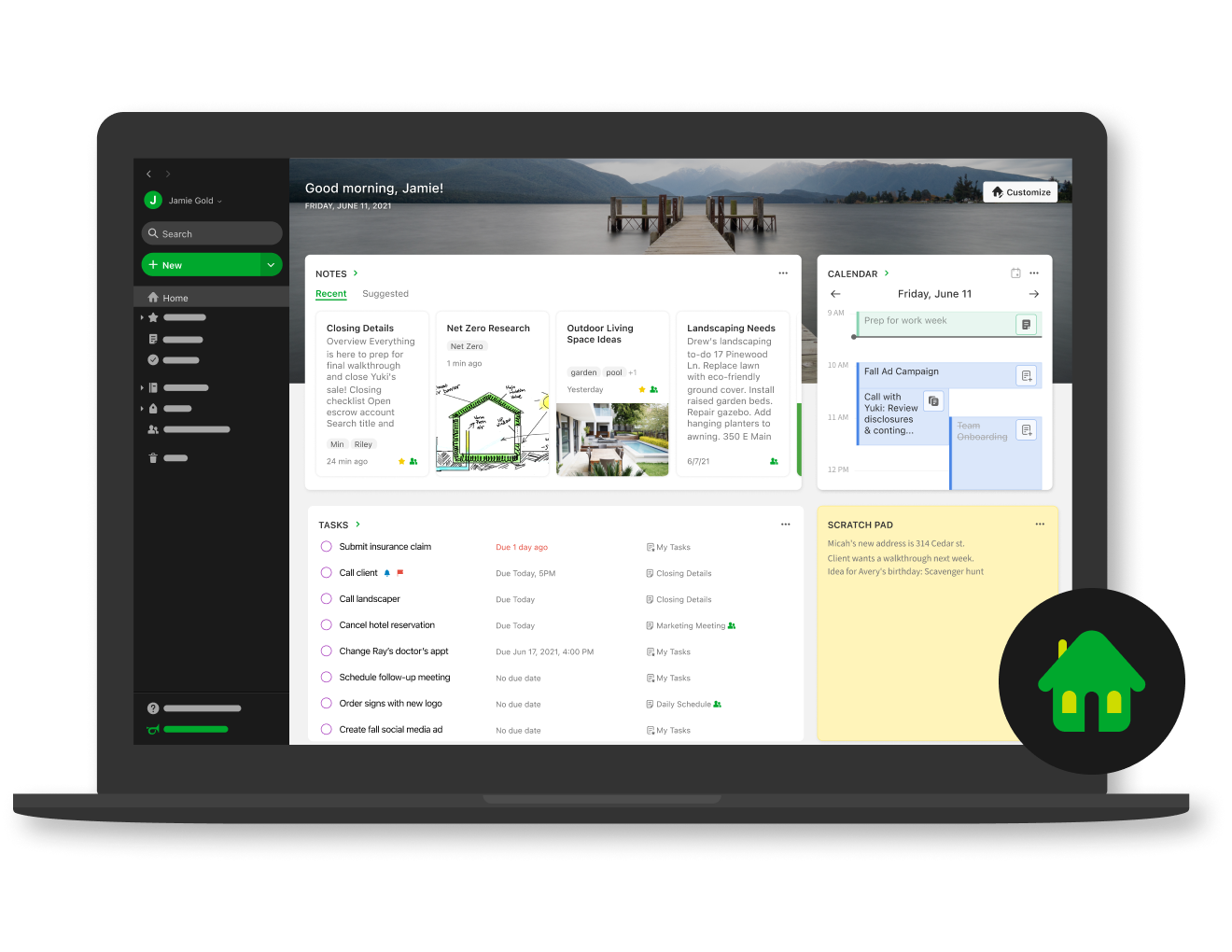
Home brings all of your information to one place. Notes and Notebooks, recent notes, shortcuts, tasks, scratch pad and much more. You can customize what you see on your Home with a variety of widgets.  Home is a brand-new way to start your day in Evernote; a one-stop dashboard that puts the information you need front and center—neatly organized and instantly available—so you can stay on top of your day without feeling overwhelmed. 
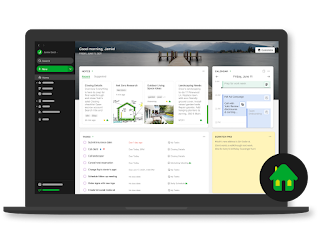


I have Evernote web open to Home when I log into my Chromebook and I can see my schedule and tasks and access all of my frequently used notes. I can access recent notes, shortcuts to most used notes, see my calendar and all of my tasks that are in different notes, and take quick notes in the scratch pad. Start my day already organized and stay that way throughout my day. 

I always have one tab open to Home. 


Tasks is another new feature. You could always create task lists with checklists and checkboxes, but they were only in the note you created them in. Tasks lets you set reminders and due dates, tags and even assign to someone, and see all of your tasks in one place, no matter what note the task lives in. There is also a Tasks widget for Home so you can see your tasks in one place. 


I create tasks in different notes as needed, from meeting notes to project work, and can see them all on my Home page. I also set reminders for them so I don't forget to work on them. 

Home is my starting point, but I also have 3 other Evernote notes open as separate tabs throughout the day. One is for Project Management and has all of my projects listed, with Internal Links to the main note for each project. This note lets me see all of my ongoing projects in one place, with a quick note about each, with the internal links connecting me to the details project management note.


My HOME setup (redacted).

Notebooks on the left, Recent notes across top, 3 scratchpads on left for quickly needed information and quick notes. 

Shortcuts to most used notes and then Tasks in center.


Recently captured web clips for quick access, and my Google calendar at bottom right for quick looks and for quickly accessing and creating notes for meetings. 


I start my day by checking my Tasks list and then going through my Project Management note and all of my projects, updating the status, adding notes, adding attachments or emails, and keeping everything organized. In addition to my Project Management note that I keep open all day, I also have a note that has all the quick reference material I need to access each day, from short reference notes, to links to other notes with more detailed information. The third tab is a quick reply note - it has quick replies for resources, replies and other information I share with my team and coworkers so I don't have to manually type out the same notes over and over again. 

The detail project management notes having all the information, tasks, notes, file attachments, emails and more in one place for me to track and manage the projects. I have 10 daily projects and over 20 others going on at once and can track and manage them all in Evernote. 

I also have external links in notes, including to Google Drive/Docs files, websites and more. I like to add attachments as PDF files (save other file types to PDF first and then attach) because I can view the entire PDF in the Evernote note itself and also Annotate PDFs and images right in Evernote. This makes accessing and viewing these files much easier and faster. 

I use notebooks and notebook stacks to organize my notes by work or personal, topics, projects, etc. This allows me to find and access the notes I need, when I need them. I use some tags, but Evernote's powerful Search feature makes it easy to find notes by title, words in the note (including in images!) and more so I can find what I need, no matter where it is stored. 

I also have Connected Evernote and Google Calendar to make my day even more organized and efficient. There is a widget for Home where I see my Google calendar, and I have it set so Evernote prompts me to create a note for each of the calendar events, like notes for meetings.  can link notes with calendar events so ideas and decisions stay connected to the people, places, and activities that sparked them.

I use the Web Clipper to capture web pages or online resources for reference, later reading or to keep for projects. It is easy to use and clips everything on a site, or you can just clip the simplified article. 

I also use Email to Evernote to send work emails to Evernote for easier recall and to include with related project materials and scan documents into Evernote with my scanner or even my phone.

All of my notes are saved in the cloud and synced across your devices. Windows, Mac, iOS and Android also have the ability to sync notes offline for access anywhere. (for Chromebook users, install the Android app for offline access). I can access and edit them anywhere, on any device. There are widgets for mobile as well. 

Evernote Tips and Tricks Series 

Evernote - new and improved and a great app for Education (and more)


More Productivity Resources:

Productivity and Organizing - Resources, Tips and ideas for being more productive and organized 


Looking for help with using Evernote? I'm a certified Evernote Expert. Contact me for help: daveandcori at gmail dot com. 


.

Wednesday, March 30, 2022

Evernote - new and improved and a great app for Education (and more)


I am a huge Evernote user and fan. I started using Evernote back in 2009, have been an Evernote trainer, used the beta of Evernote for Education with my students in 2011, and am an Evernote Expert. I use Evernote everyday for work and personal use and it has made me more organized, productive and efficient.


Evernote relaunched a couple of years ago with a whole new code-base to make it easier and faster to deploy to multiple platforms and provide updates. They also added some great new tools and features that help you be more efficient, organized and productive.

Evernote is more than just a note-taking tool - it can be used as your second brain, task list, project management, class notes - including text, audio, attachments, and handwritten notes, going paperless and so much more. It is available on Windows, Mac, iOS, Android and the Web (which I use most of the time).

Why Evernote

Evernote gives you everything you need to keep life organized—great note taking, project planning, and easy ways to find what you need, when you need it.


Here are some of the new features and use cases:

Home


Home is your dashboard. In fact, many users used to create their own notes as a dashboard and Evernote did a contest for the best one. This led them to develop Home.

Home brings all of your information to one place. Notes and Notebooks, recent notes, shortcuts, tasks, scratch pad and much more. You can customize what you see on your Home with a variety of widgets.  Home is a brand-new way to start your day in Evernote; a one-stop dashboard that puts the information you need front and center—neatly organized and instantly available—so you can stay on top of your day without feeling overwhelmed. 

I have Evernote web open to Home when I log into my Chromebook and I can see my schedule and tasks and access all of my frequently used notes. Start my day already organized!


Tasks is another new feature. You could always create task lists with checklists and checkboxes, but they were only in the note you created them in. Tasks lets you set reminders and due dates, tags and even assign to someone, and see all of your tasks in one place, no matter what note the task lives in.

There is also a Tasks widget for Home so you can see your tasks in one place. 


You can also Connect Evernote and Google Calendar to make your day even more organized and efficient. There is a widget for Home to see your Google calendar, and you can set it so Evernote prompts you to create a note for your calendar events - great for meeting notes. You can link notes with calendar events so ideas and decisions stay connected to the people, places, and activities that sparked them.


Other great features include:

  • Web Clipper - clip anything from the web, including PDFs, into Evernote and organize them. Can clip full page, selection, bookmark, or simplified view (getting rid of ads and other distractions). Save the important things you find online. Clip web pages, articles, or PDFs and keep them in Evernote—ad-free, searchable, and stored forever.
  • Document scanner - go paperless. Use the built in scanner tool to scan anything into Evernote.
  • Templates - use pre-made templates, or make your own, to make it easier to create notes for meetings, class, project management and more. 
  • Search - powerful search to find anything, including text in attachments and even handwritten notes. 
  • Email to Evernote - you can send emails into Evernote to save and organize them better. Attachments are also captured. Save the email and attachments and then add your own notes. 
  • Integrations - Evernote works with other systems to make your life even more organized. Google Calendar, Gmail, Drive, Slack, Microsoft Teams, and Salesforce integrations and add-ons.
  • Spaces - for teams using Evernote. Have a centralized space for everyone’s ideas and work. Maintain information continuity across time and team. Even when team members change, your dedicated space helps new colleagues get quickly up to speed.
  • Annotate PDFs and images - Easily annotate images and PDFs with text, lines, shapes, arrows, and more.
  • Internal Links - you can link other notes inside of notes so you can always find what you need. 
And your notes are saved in the cloud and synced across your devices. Windows, Mac, iOS and Android also have the ability to sync notes offline for access anywhere. (for Chromebook users, install the Android app for offline access). 


Evernote is a great tool for students, educators and administrators as well.

  • take notes in class, link other resources, calendar reminders, tasks and more
  • lesson plans, resources, attachments
  • project planning, teacher evaluations, notes and resources
  • organize everything. 
  • Organize coursework -Track tasks and deadlines, take and share notes, even scan your handwriting. Keep everything linked to related handouts, research, and whiteboard pictures—all in one place.
  • Learn anywhere - Always forget where you save things? Search tags, text, and calendar details like place and attendees, and sync all your study materials across your devices—even offline.
  • Study with Drive - Save Google Drive files in Evernote to keep your course content and your ideas in one spot. You can also connect your primary Google Calendar and set task deadlines so nothing falls through the cracks.
  • Take a picture of handouts, the whiteboard and more and save into Evernote. It can search for text in these images!
  • Take audio recordings in your note. 

Here is a page I created years ago on Evernote in Education with some great tips, ideas and resources. Some of it is outdated with the new version of Evernote, but the ideas are still the same.  

http://educationaltechnologyguy.blogspot.com/p/evernote-for-education.html 

Evernote Tips and Tricks Series 

Some other resources for Evernote in Education:


Evernote also provides plenty of resources and support to get you started, and organized.


Evernote Plans - there are 3 plans for users with different features depending on your use cases and needs. 

I use the Professional Plan which is only $9.99/month paid monthly, or $99.99 per year if paid yearly. This has every feature except Spaces. For the cost of 2 Starbucks coffees, I have an amazing tool that helps me be organized, efficient and productive. 

There is a free version as well.


Looking for help with using Evernote? I'm a certified Evernote Expert. Contact me for help: daveandcori at gmail dot com. 


Get started with Evernote: Evernote Quick Start Guide. 

https://evernote.com/compare-plans 


.

Friday, April 10, 2015

Evernote Tips and Tricks Series - #13 - Clearly - clean up what you are viewing

Evernote Web Clipper graphic

I'm a huge fan and user of Evernote, and lots of people ask me for tips on using it, so I'm starting a series of blog posts on Evernote Tips and Tricks to share some great tips and ideas for using Evernote.

Tip #13 - Clearly

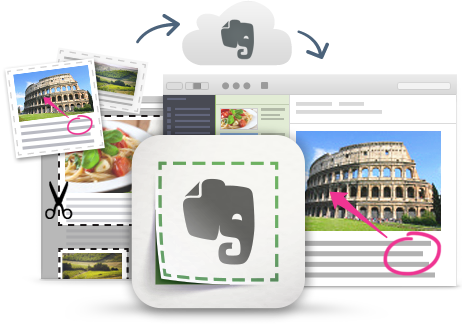
Evernote's Web Clipper allows you to clip a "simplified article" when clipping from a website. This feature gets rid of the side bars, ads, etc and just copies the article (occasionally it doesn't work depending on how the site was built, but it works most of the time.) It's a great way to just clip the article and not the distractions, making it easier to read, as well as taking less time to clip and using less storage space.


Evernote also has a stand alone browser extension that does basically the same thing, called Clearly.
Evernote Clearly is a browser extension that allows you to read online with less distractions. You simply click the extension and it hides all the distractions from blogs and articles, allowing you to read with less distractions and more easily. It use it a lot, especially on sites that have a ton of ads or side bar items.

This is great for students who have issues with distractions and makes things easier to read. 

Simply install the extension and click on it when in an article. From there, you can clip it to Evernote, highlight, annotate or even print. 


Evernote Tips and Tricks Series - #12 - Notebooks, Notes, Tags

Evernote Web Clipper graphic

I'm a huge fan and user of Evernote, and lots of people ask me for tips on using it, so I'm starting a series of blog posts on Evernote Tips and Tricks to share some great tips and ideas for using Evernote.

Tip #12 - Notebooks, Notes, Tags

Evernote's notes and notebooks are the main part of the app. There are a lot of different ways to format and organize them.

 
I use notebooks, notebook stacks and tags to organize everything in Evernote. The stacks are by job/function, for example - school, consulting, personal. Then each note is a new area - lesson plans, project plans, receipts, recipes, photos, etc. Tags are used to make searching easier and to allow a note in one notebook to be "cross referenced" for search. I also use links to notes to connect notes in one notebook, into a note in another notebook.

 
In the last tip, Evernote Tips and Tricks Series - #11 - merge notes, create table of contents, create notebook stacks I talk about using notebook stacks to organize the notebooks more. You can also search through your notes to easily to find things and link notes to each other.

When you search, you can search for a term, in different notebooks or by tags. You can also just click on the tag on the left menu. Tagging is a great way to organize your notes.

There are a lot of ways to organize you notebooks and notes and some tips on formatting them.

  1. Group related notes into notebooks (like files into folders) - notebooks can be setup based on work, personal, travel etc. 
  2. Notebook stacks (see above) can be used to group notebooks together. For example, you may have a bunch of notebooks for work that you group together. 
  3. Use tags to connect different notes together - great for having notes that are in different notebooks, but have a common theme or topic. For example, I have SBAC (testing) as a tag in notes that could be in my IT/EdTech notebook or my Academic notebook. 
  4. If you have Evernote Premium, setup offline notebooks in Android and iOS.
  5. Use bold, underline, numbered lists, checklists, tables and bullet points in your notes to better organize your notes for easy reading. 
  6. Use horizontal lines in notebooks to divide sections of content. (Ctrl + Shirt + - will insert a horizontal line)
  7. Attach files into your notes for viewing and retrieval. PDFs and images are directly viewable in the desktop app. Clicking other files will open them with their associated app. Edit and then click save and the file in Evernote is updated (Desktop).
  8. Use a table of contents note to organize the notes in a notebook
  9. Use note links to reference one note in another note. 
  10. Create note templates and forms to save time (great for meeting notes, etc.)
  11. Put frequently accessed notebooks and notes in the Favorites Bar for quick access. 


There are a lot of ways to get organized with Evernote and tons of ways to manage your notes and resources. Hopefully theses tips were helpful.


Related:

Evernote for Education Resources (includes more tips)

Evernote Tips and Tricks Series

Tips on Getting Started with Evernote

Examples of using Evernote as: teacher, student, admin

Tuesday, March 3, 2015

Evernote Tips and Tricks Series - #11 - merge notes, create table of contents, create notebook stacks

Evernote Web Clipper graphic

I'm a huge fan and user of Evernote, and lots of people ask me for tips on using it, so I'm starting a series of blog posts on Evernote Tips and Tricks to share some great tips and ideas for using Evernote.


Tip #11 - merge notes, create table of contents, notebook stacks

Evernote's layout of notebooks and notes is great for organizing, but there are some more great features too.

1. Merge Notes - Simply select the notes you want to merge together (hold CTRL or SHIFT as you select each one) and then click "Merge". This merge's the notes together into one note with the first note you select as the top note. Each note title is shaded providing a sort of page break between each note. This is a great way to consolidate multiple notes into one - very useful when you are adding/creating notes from different sources into Evernote or for cleaning up completed projects.


Please note: If you make a mistake merging notes or would like to retain the original notes, restore each individual note from your trash.

2. Create a Table of Contents - This creates a note with a list of all of the notes you selected (hold CTRL or SHIFT to select notes) with the title of each note being a hyperlink to the actual note. This is great for project management so you have a list of all projects/tasks on one note, as a unit plan with a list to each lesson plan and resource, or for writing with a list of each chapter.


3. Create Notebook Stacks - you can organize a bunch of notebooks into a "stack" where they are all organized. For example, I have a notebook stack for my consulting projects which has different notebooks underneath including clients, project files, resources and more.

In Evernote for Windows and Mac, select the notebooks from the left side menu, drag and drop one notebook into another notebook and it will create a new stack containing both notebooks. You can add more notebooks by simply dragging them into the stack.


Evernote for iOS
1. Navigate to your notebook list view.
2. Tap Edit in the upper right screen.
3. Select the information icon (“i”) next to the notebook you would like to move to your stack.
4. Tap Stack. 
Evernote for Android
Adding notebooks to a stack with Android is a one-step process!
1. Press and hold a notebook and select ‘Move to stack’ or ‘Move to new stack’

More great features from Evernote that allow you to be more organized and efficient.


Related:

Evernote for Education Resources (includes more tips)

Great Tips, Resources and Ideas for Going Paperless

Tuesday, February 10, 2015

Evernote Tips and Tricks Series - #10 - scanning documents and business cards

Evernote Web Clipper graphic

I'm a huge fan and user of Evernote, and lots of people ask me for tips on using it, so I'm starting a series of blog posts on Evernote Tips and Tricks to share some great tips and ideas for using Evernote.

Tip #10 - Scanning Documents and Business Cards

Another great feature of Evernote is the ability to scan and then easily organize and search documents and business cards.

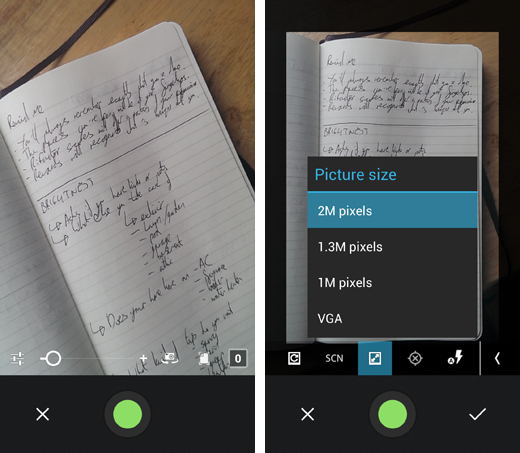
You can capture documents easily by either scanning them with a scanner, taking a photo with a camera, or using the Evernote mobile app and your device's camera. Once captured, text in the document is searchable. I scan important documents, older paper-based resources, and even photos into Evernote to save them and better organize them. Plus, you can add tags and notes for better organization. You can even annotate them in Evernote.


The All New Evernote 6 for Android Is Here

On the mobile app, click on new note, then Camera and select Document, Camera, Post-It or Business Card. Get the item you want to scan in the box on the screen, click capture and you are all set.

You can even take pictures of posters or notes on a board to save.

Untitled-2

You can even scan and capture business cards easily and Evernote will create a contact type note for you. If you link your Evernote account with your LinkedIn account, it will even grab the person's profile info from LinkedIn and put it in your note. I like to do this with a business card as soon as I get it using the Evernote mobile app on my phone. Then I hand back the card to the person so they can use it again. I then link the contact note to any other notes from our meeting.


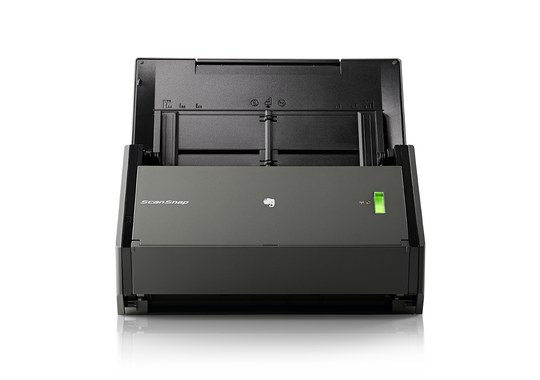
You can use any scanner to scan a document and then upload that file to Evernote. Or, you can use Fujitsu scanners, which have software that allows you to scan directly into Evernote. Even better is the Evernote scanner, which scans directly into Evernote and lets you automatically have it put scanned items into notebooks based on their type: document, photo, business card, etc. It also scans both sides of document at the same time. I've been able to digitize every document, photo and even old books, magazines, guidebooks and more using it.


evernotescreens2 Evernote updates its Android app with a new camera mode, shortcuts menu and Smart Notebook support

Scanning/Camera Capture - Easy, quick and a great tool for using Evernote to go paperless and organize yourself.


Related:

Evernote for Education Resources (includes more tips)

Great Tips, Resources and Ideas for Going Paperless

LinkWithin

Related Posts Plugin for WordPress, Blogger...