Showing posts with label CIO. Show all posts

Monday, December 23, 2013

My Workflow as CIO - includes heavy use of Evernote


I am the Chief Information Officer (CIO) for an urban public school district. We have over 21,000 students, 3500 faculty and staff, 40 buildings, 15,000 devices, a full data center and fiber network, and an IT department staff of 15. We manage multiple large IT projects at once, including desktops, Chromebooks, Smartboards, network upgrades, Kronos, printers, new school construction, multiple network applications and software, and also consult on all technology issues and purchases in the district.


I have specific workflow that I have developed over the last year to help stay organized and on schedule.


I check emails when I get up for any critical issues (sent from monitoring software) or emergent needs. When I arrive at work, I login to my computer and check emails again, along with my calendar and tasks for the day. Then I check in with my staff and network engineers and technicians to discuss tasks and projects for the day, and anything they need from me.


I monitor the work orders in Track-It, which is our help desk software. I review work orders and reassign, add notes, comment, address the issue, as needed.


Throughout the day I answer emails, monitor Track-It, communicate with my staff on projects, consult with other district and school staff, work with vendors, manage projects, and more.


At the end of the day, I review the current day and make notes for the next day - tasks, follow-ups, and priorities. I check with with my staff and make notes on their projects.


Evernote graphic


The main tool that I use for all of this is Evernote.  I use Evernote for, well, everything. I have project management notes with schedules, tasks, attached files and more. I clip news articles for review, vendor websites, all my contacts, clip emails, with the attachments, from Outlook, notes, tech reference, personnel files, etc. You name it, it's all in Evernote for one-stop access, from any device, anywhere.


I have notebooks setup for projects, personnel, vendors, reference notes, tasks, contacts, to do later, to read later, etc. I have a main note, Project/Task Management, that I use as my task list. I can reorganize the tasks based on priority. Each task links to another note with more details. I have this note divided up with Follow Up, Priority 1, Priority 2 and Priority 3 tasks. These get moved around a lot as priorities change.


By linking to other notes, my task list is clean, but each task is linked to more details. The green ones are linked to other Evernote Notes.


Each note also has attached files as needed - quotes, specs, spreadsheets, documents, and more. I also clip emails using the Evernote clipper for Outlook - it clips the email chain, along with attachments. I can then merge or link this note to other project notes and keep everything in one place. Instead of emails in Outlook, notes in Evernote and files on my computer, everything is in one place in Evernote.


I also have meeting notes, personnel files, schedules, and reference files and notes in Evernote. I clip websites and documents from online with the Evernote clipper and save them to the proper notebook. I use Evernote Clearly to clean up the page before I clip it also. You can also clip online PDF documents directly into Evernote.


I also forward emails or send files and notes from other apps to Evernote via email. You get a special email address to use.

The other nice thing about Evernote is that you can share notes with others, even if they don't have an Evernote account, for them to view. It is very easy to do. You can also share notes with others who have Evernote accounts and allow them to edit them.


I use the Evernote Scanner from Fujitsu (the Fujitsu ScanSanp scanners work to) for one click scanning into Evernote. All paper documents, print magazine articles, print brochures, conference materials, etc. gets scanned into Evernote and organized.


Meeting notes are taking in a variety of ways - type directly into Evernote, audio recording into Evernote, Livescribe Pen directly into Evernote, handwritten notes scanned into Evernote, and even notes take with other apps copied into Evernote.

If you open an attached file by double clicking it in Evernote (and it opens in created software such as Word), edit it and click "save" it updates the file in Evernote.


By keeping everything in Evernote, I can easily link or merge items, organize them by notebook and tags, easily search them and access everything - notes, emails, clippings, and files - in one place, from any device or computer. I use the Windows Desktop app at work and on my home laptop and then access my data with the Android App on my HTC One and Nexus 7, and the web app on my Chromebook and from other computers.

You can even set reminders for notes so that you don't forget to do something. Great for following up on tasks.

Evernote is available in free and premium versions. The premium version allows you to upload more data each month, have offline notes in the apps, and more. It's well worth it.


Here is a listing of my notebooks I have for CIO. "CIO 1 Main" is my active projects and includes my project lists, to do's, and more.


Here’s more information on Evernote:


Evernote Clearly:


Livescribe Pens:


Fujitsu ScanSnap Scanners:


Evernote Scanner:


Monday, December 31, 2012

Reuse, update and recycle old technology


Technology changes rapidly and it seems like something you just bought last week is already outdated and replaced by something new. Some people and companies are always buying the latest and greatest technology, but schools, and most people, can't afford to do that. So, what can we do?

One thing is to reuse old technology for new purposes. I use an old Palm PDA as my backup alarm clock. I can set repeating alarms for each day and when it goes off, the screen turns on, adding a visual alarm along with the sound. I use my old Palm Centro phone as a backup remote control for the TV, DVD, and VCR. It has an IR transmitter and an app that has all of the programs in it. I also have an old netbook that I still use. It is my remote back up system. It has Dropbox and Sugarsync on it and backs up those accounts, along with my Google Drive and Google Accounts and Evernote. This means that all of my data is on my main computer, this netbook, those systems, and my mobile devices. Great way to reuse an old device.

You can update old technology and give it new life. With thousands of computers in our district, many are very old. Yet for a small amount of money, we can get them running better and longer. We have been updating hard drives and RAM for a fraction of the cost of a new device and they run great. We also move the older computers for the lower grades student use since the software they use does not need high end devices. We even have very old LCD projectors out there that work fine. We are taking old laptops and updating the RAM and re imaging them. Most of the services and apps that the schools are using are all going web based so these older laptops, using a browser like Google Chrome, will be perfectly adequate and will be used like Chromebooks for web based apps only.

As schools got computer projectors and streaming video, TV's with VCRs and DVDs have been sitting idle. We just found some converters that allow you to connect your computer to a TV. Since we have some great, large TVs, we can use these converters to allow teachers who do not have a computer projector to share their computer image with their class.

You can also recycle your old technology, and even get some money for it. We have lots of old computers that need to be disposed of, along with printers, fax machines and old monitors. There are a variety of companies out there that will not only take away your old technology, they will pay you for it. They even certify that the data is securely erased. The only thing they don't pay for is the old monitors, but they also don't charge to hall them away and properly dispose of them.

Don't just throw away your old technology, find new uses, new lives, or at least get some cash for it.


How do you reuse and recycle your old technology?


Thursday, December 27, 2012

Technology I'm using daily as a School District CIO


This past November I started a new chapter in my career and became the Chief Information Officer (CIO) for the district I was a teacher in for 10 years. It combines my experience as a teacher and educational technology specialist, as well as my 10 years as an engineer and project manager, into one very exciting, busy, crazy, rewarding job. I am responsible for the IT department, as well as coordinating with the data teams and all technology issues and projects.

In the past, I've written about the technology I used on a daily basis as a teacher. Today, I want to write about the technology I'm using on a daily basis in my job as CIO and how this technology helps keep me organized, informed, and communicating with others. Some of it is the same, some different, and some just used differently.


Evernote - Evernote, an electronic notebook with lots of great features, is my main tool. I have used it for lesson plans, lesson notes, lesson resources as a teacher and travel info, recipes, clippings from web sites, to do lists, personal references, tech resources and instructions and so much more. It is the main app I use for almost everything. 


As CIO, I have created multiple notebooks. They are each named CIO and then the specific notebook title and all stacked under CIO as a main category. I have a note entitled "Priorities" that I update each week. It has a list of the major tasks and projects that I need to work on that week. I don't keep much for details in this note, rather I put the link to other notes that have all of the details on them. 

I also upload files as attachments to Evernote so that I can easily access them anywhere, on any device. Files that I have to edit often are stored on our servers and I can access them remotely via VPN client. 

I also use the Clip to Evernote extension for Chrome (my browser of choice) to clip web articles for future reference. 

Another great feature is the Outlook to Evernote extension. I use Outlook for email, contacts, and calendar, and can export any email or contact from Outlook to Evernote, including attachments. This keeps my email less cluttered and allows me easier access to the emails and files from other devices. 

I use Evernote to take notes in meetings also, either with my smartphone, Chromebook or laptop, or using my Livescribe Sky pen to take handwritten notes (I'm faster that way) and have them synced directly to Evernote. 

I use the Evernote desktop app at home and at work due to the advanced features and local backup of data. I have a premium account (only $45 per year), although many people would be fine with the free account. 


Dropbox - Dropbox is a great file sync, backup, and sharing service that you can use for free. The rest of the files I need to use that are not in Evernote or Google Drive are setup in my Dropbox so that they are synced on my home computer and my smartphone. I can access my files from any web browser also. I never have to worry about losing a flash drive or forgetting to copy or email myself a file.


Google Chrome is my browser of choice. It's fast, secure, easy to use, has great extensions and bookmarklets, and just works great. I have it automatically open up my most used tabs: Gmail, Google Calendar, Blogger, Tweetdeck, and Evernote. I also have bookmarklets for saving pages into my Google Bookmarks, accessing school systems, and much more.

Extensions:
Evernote Clipper - clip web pages and articles into my Evernote notebooks for reference or sharing with students.
Goo.gl URL Shortener - shorten web page URL's for better sharing and tracking of sharing.
Webpage Screenshot - take screenshots of web pages, edit and format them, and save them.
Evernote Clearly - clean up a web page for easier reading and clipping.


Google Apps - I use Google's many apps, including Gmail, Blogger, Calendar, Docs/Drive and Reader for myself and as part of my daily job. We are also going to Google Apps for Education for our students and faculty along with Chromebooks for different groups.


I use Tweetdeck in Chrome browser to access my PLN on Twitter. It is easy to use and has great features like multiple columns and scheduling of tweets. It's a great way for me to connect with other CIO's and Technology Directors for help and advice.


Android Smartphone - with my Android Smartphone, I can access all of my materials and resources, all of the apps and resources listed above and even control my computer with SplasthTop Remote.Android works great with all of the Google resources I use, and the Evernote app for it is awesome. This allows me to access meeting notes, files, and much more anywhere I go. Very handy as I travel the district for meetings and working with staff on technology projects.


Livescribe Sky Smartpen - This job entails a lot of meetings, issues, and challenges. One way I have been able to keep up with things is through my Livescribe Sky WiFi Smartpen. With this smartpen, I'm able to take notes in meetings on paper, which is very efficient, especially with my note taking style, which incorporates sketches, symbols, arrows, and more that don't translate well with a keyboard. The smartpen saves all of my notes and syncs them to Evernote over WiFi. This means that all of my notes are stored inEvernote so that I can access them anywhere. They are even searchable. I can also record audio in important or fast moving meetings to make sure I don't miss anything.


Outlook icon

Microsoft Outlook - As a teacher, we all used the web version of Outlook. Administration and office staff use the desktop version of Outlook because we utilize more features. Email management, calendar and meeting schedules, contacts, and more. The full version of Outlook also has the Evernote extension so I can save emails, attachments, and contacts right to Evernote. 


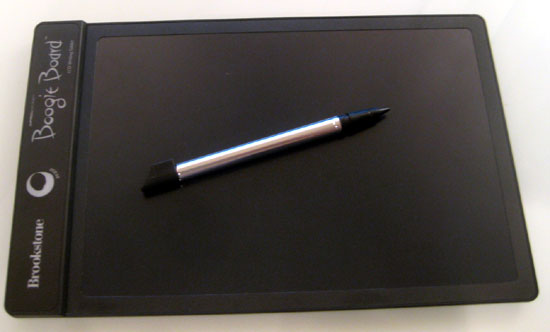
Brookstone Boogie Board -  a paperless notepad. It is small, thin and lightweight. You write on it using the stylus, or even your finger. It has sealed battery that lasts for 50,000 erasures. I figure 50,000 erasures will last about 20 years or so. It only uses power to clear the screen. I use this as my scratch pad on my desk to take quick notes with before adding them to Evernote or doing that task.


I also use some other systems, such as Tack-IT for our Help Desk, and our budget and purchase order system. For hardware, I have an HP desktop workstation, HP laptop, Chromebook (Samsung 303) and my smartphone and Livescribe SkyPen. 

So, that's what I use each day in my role as CIO. These technologies allow me to be organized and easily access all of the data and information that I need to access each day, as well as communicate with my staff and other personnel. 


What technology do you use each day in your job?


LinkWithin

Related Posts Plugin for WordPress, Blogger...