Showing posts with label paperless. Show all posts

Wednesday, April 8, 2015

Paper vs Digital Notetaking for Students


I'm 99% paperless (the other 1% is out of my control) and take my notes digitally, for the most part, on my Chromebook or Smartphone. I do use a Livescribe pen and notebook sometimes too and I know a lot of people prefer paper notes and planners.

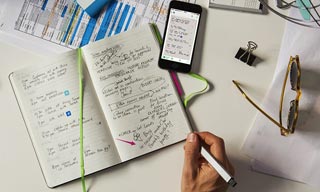
I just saw an article, "Is the pen mightier than the keyboard for students?" that makes a case that students retain more when they take notes on paper and that digital devices, as reported by students themselves, allow for more distractions.
US educational psychologists Pam Mueller and Daniel Oppenheimer published a study last year which found college students who wrote their notes on paper actually learn more. Their study showed those used tablets always took more notes, but it was pen and paper students who scored better on conceptual understanding of the material – and in how to apply and integrate it in exam conditions.

I agree with a lot of this because I see too many students just copy right from digital resources for their "notes" and don't put them in their own words. This means that their brain isn't processing the information, It's the same with clipping things to Evernote. Whenever I clip something, I make some of my own notes on it too. Students also have lots of ways to be distracted with a digital device (as do adults). In the old days, we could doodle or daydream, now you can go online and do anything instead of paying attention.

It's an interesting article that all educators should read and take notice of.


Related:

Great Tips, Resources and Ideas for Going Paperless
Lots of Resources to Help You Go Paperless


10 Great, Free Apps for Students for Notetaking and Class Planning

Friday, March 20, 2015

Rocketbook - cloud integrated notebook you microwave to erase


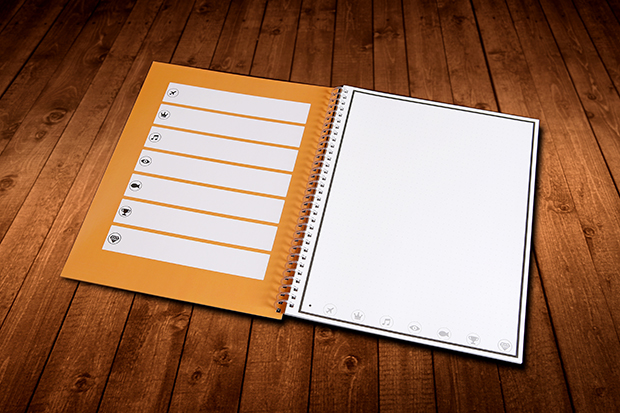
Rocketbook is a cool new product. It is similar to Livescribe notebooks in that it has micro-dot paper that uses a special pen and captures what you write to the cloud. The difference is that you can reuse the notebook - put it in the microwave for 30 seconds and the special ink (Pilot FriXion pen) is erased. The company says you can reuse the notebooks about 25 times, which is very nice. One pen is included.

The notebook and app work together and there are 7 icons on the bottom of each page that you assign to the app of your choice, including Dropbox, Evernote, Google Docs or even your email.

Paper notebooks appeal to a lot of people and are easier, at least in my opinion, to take math, science, engineering notes (equations) and draw sketches.


Paper notebooks are a great resource and appeal to many users. Having a paper notebook that also works with digital resources is even better.

It is scheduled to release in June 2015 - they have already surpassed their initial funding goal by over 1000% so it is happening. You can go to the site and contribute to it for early access to products too.


Related:

Analog (ie paper) resources that work with digital
Evernote for Education Resources

Livescribe Pens and Notebooks

Tips and Resources for Getting Organized

Getting Students and Teachers Organized - includes some tips for paper based systems


-

Thursday, December 18, 2014

Analog (ie paper) resources that work with digital


Not everyone likes to, feel comfortable, or can go completely paperless. Some like the feel of paper. Sometimes it's easier to take notes on paper. Sometimes, digital equipment isn't allowed in an area. Whatever the reason, there are some great paper-based resources that work with digital.

I often share tips and resources for getting organized and have shared some paper-based solutions in the past.

Here are some tips/resources that are paper based or similar:


1. plain old paper - yup, plain old paper is still around. You can easily take notes, sketches and more with any notepad and pen or pencil. Want or need it digital? Just take a photo of it with your smartphone or scan it. You can also use paper based organizers and do the same thing.


Evernote Planner

2. Moleskin Notebooks - these are specially made to work with Evernote and your smartphone camera. Write in the notebooks and then take a photo of it with the Evernote app and your notes are now in Evernote. You can make them private, share, tag and more with them.


3. Livescribe Pen - write with the special pen on the special paper and capture your notes digitally. The WiFi version automatically syncs over WiFi. I love mine and sync it to my Evernote account. No WiFi where you are? No worries, the data is stored in the pen and can be synced to your computer later. This is a great compromise for using paper while saving the info digitally. You can also record audio with it.


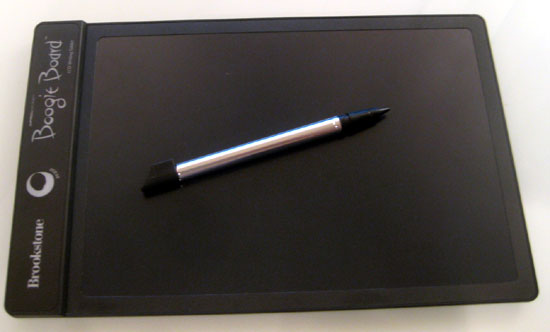
4. Boogie Board - the Boogie Board is an electronic pad that allows you to write on it with a stylus and then erase it. There are also models that let you store what you write and sync it to your computer. I use the basic model for quick notes at home and the Sync model for notes at my desk (instead of using post-its). I can then save the notes if I want by syncing it to my computer (and my Evernote account) or via Bluetooth to my smartphone. Nice for quick notes and meetings.


There are a variety of ways to capture information - use what works for you.


Related:

Tips and Resources for Getting Organized

Getting Students and Teachers Organized - includes some tips for paper based systems

Evernote for Education Resources


Monday, December 23, 2013

My Workflow as CIO - includes heavy use of Evernote


I am the Chief Information Officer (CIO) for an urban public school district. We have over 21,000 students, 3500 faculty and staff, 40 buildings, 15,000 devices, a full data center and fiber network, and an IT department staff of 15. We manage multiple large IT projects at once, including desktops, Chromebooks, Smartboards, network upgrades, Kronos, printers, new school construction, multiple network applications and software, and also consult on all technology issues and purchases in the district.


I have specific workflow that I have developed over the last year to help stay organized and on schedule.


I check emails when I get up for any critical issues (sent from monitoring software) or emergent needs. When I arrive at work, I login to my computer and check emails again, along with my calendar and tasks for the day. Then I check in with my staff and network engineers and technicians to discuss tasks and projects for the day, and anything they need from me.


I monitor the work orders in Track-It, which is our help desk software. I review work orders and reassign, add notes, comment, address the issue, as needed.


Throughout the day I answer emails, monitor Track-It, communicate with my staff on projects, consult with other district and school staff, work with vendors, manage projects, and more.


At the end of the day, I review the current day and make notes for the next day - tasks, follow-ups, and priorities. I check with with my staff and make notes on their projects.


Evernote graphic


The main tool that I use for all of this is Evernote.  I use Evernote for, well, everything. I have project management notes with schedules, tasks, attached files and more. I clip news articles for review, vendor websites, all my contacts, clip emails, with the attachments, from Outlook, notes, tech reference, personnel files, etc. You name it, it's all in Evernote for one-stop access, from any device, anywhere.


I have notebooks setup for projects, personnel, vendors, reference notes, tasks, contacts, to do later, to read later, etc. I have a main note, Project/Task Management, that I use as my task list. I can reorganize the tasks based on priority. Each task links to another note with more details. I have this note divided up with Follow Up, Priority 1, Priority 2 and Priority 3 tasks. These get moved around a lot as priorities change.


By linking to other notes, my task list is clean, but each task is linked to more details. The green ones are linked to other Evernote Notes.


Each note also has attached files as needed - quotes, specs, spreadsheets, documents, and more. I also clip emails using the Evernote clipper for Outlook - it clips the email chain, along with attachments. I can then merge or link this note to other project notes and keep everything in one place. Instead of emails in Outlook, notes in Evernote and files on my computer, everything is in one place in Evernote.


I also have meeting notes, personnel files, schedules, and reference files and notes in Evernote. I clip websites and documents from online with the Evernote clipper and save them to the proper notebook. I use Evernote Clearly to clean up the page before I clip it also. You can also clip online PDF documents directly into Evernote.


I also forward emails or send files and notes from other apps to Evernote via email. You get a special email address to use.

The other nice thing about Evernote is that you can share notes with others, even if they don't have an Evernote account, for them to view. It is very easy to do. You can also share notes with others who have Evernote accounts and allow them to edit them.


I use the Evernote Scanner from Fujitsu (the Fujitsu ScanSanp scanners work to) for one click scanning into Evernote. All paper documents, print magazine articles, print brochures, conference materials, etc. gets scanned into Evernote and organized.


Meeting notes are taking in a variety of ways - type directly into Evernote, audio recording into Evernote, Livescribe Pen directly into Evernote, handwritten notes scanned into Evernote, and even notes take with other apps copied into Evernote.

If you open an attached file by double clicking it in Evernote (and it opens in created software such as Word), edit it and click "save" it updates the file in Evernote.


By keeping everything in Evernote, I can easily link or merge items, organize them by notebook and tags, easily search them and access everything - notes, emails, clippings, and files - in one place, from any device or computer. I use the Windows Desktop app at work and on my home laptop and then access my data with the Android App on my HTC One and Nexus 7, and the web app on my Chromebook and from other computers.

You can even set reminders for notes so that you don't forget to do something. Great for following up on tasks.

Evernote is available in free and premium versions. The premium version allows you to upload more data each month, have offline notes in the apps, and more. It's well worth it.


Here is a listing of my notebooks I have for CIO. "CIO 1 Main" is my active projects and includes my project lists, to do's, and more.


Here’s more information on Evernote:


Evernote Clearly:


Livescribe Pens:


Fujitsu ScanSnap Scanners:


Evernote Scanner:


Wednesday, January 2, 2013

Great Tips, Resources and Ideas for Going Paperless in the New Year


I am a big fan of going paperless whenever possible and technology just keeps making it easier to do. Google is one of the sponsors of the Paperless pledge and has some tips, resources and ideas for going paperless and I have collected a variety of resources and tips. Here they all are.Check them out and check out Paperless2013 and sign up for more tips.

I use my Android smartphone, Nexus 7 tablet, Chromebook and desktop computers, along with apps like Evernote (essential to going paperless), email, online faxing and signing, Google Docs and Drive, Dropbox and Sugarsync and PDF tools, a Boogie Board electronic notepad, a Livescribe Sky Smartpen, and a scanner (Fujitsu Scansnap) to go as paperless as possible. The two articles below have more information too.

My tips and resources:

Paper, we don't need no paper! Tools and tips for going paperless

Tools to go Paperless (in school and at home)


Tips:
- use flat screen monitors on walls as electronic bulletin boards.
- install solar panels on roof to offset increased electricity use.
- 2 monitors for each PC - can have reference on one screen and working document on other instead of printing reference out (or use tablet)
- Use email, chat, and meeting software and other collaborative software
- all markups done electronically
- auto backup of network every day
- all files on network with offsite, fireproof backup (Dropbox, Sugarsync, own network)
- autosave files every 5 min
- battery and generator backups
- limit print outs to absolutely necessary items
- all files saved in two formats - original (such as Word or PPT) and PDF. PDF is readable by every device and operating system using free apps.
- Read-only terminals in certain areas for visitors and reference look up
- network accessible from home/road for personnel - no data on laptops
- all paperwork from outside is scanned into system - original is filed
- all partners, organizations and vendors are encouraged to use electronic communications - email, website forms, etc.
- Student Information are all searchable and connected and linked with all relevant files
- scan legacy files using OCR into PDF files or scan into Evernote to make searchable
- don't print emails!
- all files distributed as PDF's when possible - readable on any system
- Train your employees on going paperless

From Google:
7 best ways to go paperless.

1) Use cloud storage: One place to create, share and keep all your files
Google Drive: Get started with 5GB free. Try it free

2) Send an online fax: Fax machines waste paper and ink is expensive
HelloFax: Send faxes online, 50 free pages/month. Try it free

3) Manage your bills online: Access statements and organize accounts
Manilla: Avoid paper bills, pay online for free. Try it free

4) Sign documents using an e-signatures: Just as legal and super easy
HelloSign: eSign contracts for free. Try it free

5) Create an online expense report: Don't print out e-receipts
Expensify: Manage all your receipts in cloud for free. Try it free

6) Send online invoices and receive payment online
Xero: Online business accounting, 6 months free. Try it free

7) Scan your existing documents: Get rid of your file cabinets
Fujitsu SnapScan: The world's best document scannner. Check it out


What are your tips, tricks, advice, and resources for going paperless?


Thursday, September 27, 2012

HelloFax - Free Online Faxing and Doc Signing

Application

HelloFax is a web service (that also has a Chrome extension) that allows you to send faxes and sign documents, all online. No need to print, sign, scan and then send. No need to keep a fax machine (and the phone line) anymore either.

It integrates with Google Drive, making it easy to keep track of your documents. You can easily send and receive faxes just by entering the fax number. A fax sent to you gets forwarded to your email as a PDF file. You can also use it to sign and fill out forms. Upload a document, fill it out, and then send it via fax or email.


HelloFax creates it's own folder in your Google Drive account to make it easy to find all of your sent and received faxes and signed documents.

The free plan offers 5 free pages faxes, unlimited signed emails, and 5 signature requests. If you need more, there are different plans available.

This is another great resource to go paperless and save money.


Related:

Google Drive - online document storage and access to Google Docs

Tips, tools and resources to go Paperless

FaxZero - free internet faxing


Thursday, June 28, 2012

More Great Uses for Binder Clips


Our Favorite Office Objects: The Endlessly Versatile Binder Clip

Last month I wrote an article entitled "Binder Clips - lots of great uses for these little guys" with some ideas and resources for finding new uses for Binder clips. Here are some more.

1. Binding student work (kind of obvious) but use different colored ones to code your classes and assignments

2. Cable organization - clip them to your desk/table and feed the cable through the handle to keep them organized. 

3. Use them to wrap and organize cables and headphones (another great idea from Lifehacker).


4. Hold open curtains, or hold them closed - clip them on the curtains

5. Hang them on a bulletin board or at top of whiteboard to hold papers - great for holding signs, like "Do Now", "Homework" etc. ]


6. clip bags closed to keep food fresh

7. Hanging file folder stopper / organizer

Hanging Folder Stopper

8. Create a notepad using scrap paper - all those scrap / extra copies of memos and papers found in schools can be cut into quarters and then clipped with a binder clip for an easy notepad. 

9. bookmarks - use the small, colored binder clips as color-coded book marks 

10. Save your spot in a filing cabinet - when pulling papers out of a hanging file folder, put a binder clip there so you can easily find your spot to return the papers. 

11. Smartphone stand - prop up your smartphone for easy viewing
Make a Simple Smartphone Dock Out of Two Binder Clips


Do you have any cool ways to use binder clips?


Monday, June 11, 2012

Thank you and Farewell to TeachPaperless Blog


TeachPaperless

Shelly Blake-Plock is the creator of the blog "TeachPaperless." It was one of the first education blogs I found and started reading years ago and was one of the ones that convinced me that I should start my own blog. His blog was not limited to articles on going paperless, but rather had articles about thinking outside the box as an educator and doing different things with your students. I took many of his ideas and integrated them into my classes.

A couple of years ago Shelly asked me to contribute to his blog and I did write some articles for it. It was a great way to get more exposure for myself and my ideas. 

TeachPaperless had great articles, and great conversations in the comments sections. I learned and expanding my thinking because of this blog. 

Last Friday, Shelly posted that he was shutting down TeachPaperless and there would be no more postings. The site is still available for viewing, http://teachpaperless.blogspot.com/ and I highly recommend that people go there and read some of the great articles that are there. 

I want to take this opportunity to thank Shelly for his excellent blog, his excellent writings and ideas, and for helping me start as a blogger and for helping me thinking differently about how to help my students do well in school and teach them in new ways. Good luck to him in his future endeavors!


Some more tips for going paperless

Paper, we don't need no paper! Tools and tips for going paperless

Unfettered by Stuff - or "Why I don't lug stuff home every night"


Friday, May 25, 2012

Binder Clips - lots of great uses for these little guys


Our Favorite Office Objects: The Endlessly Versatile Binder Clip

I love binder clips. They are a great resource for organizing paper. But, since I've gone very close to paperless, I have tons of them around with nothing to use them on. Or so I thought.

Lifehacker is one of my favorite sites. They have tips, tricks, information, news and more on pretty much everything. They also have tons of ideas on how to use binder clips. 

Use Binder Clips as Photo Displays or Note Stands

Nine Great Uses for Binder Clips

I use them to hold and organize cables all the time. Clip the binder clip to a table or desk and use the handles to hold the cables in place. 

Our Favorite Office Objects: The Endlessly Versatile Binder Clip


As more and more people go paperless, we are going to have more and more orphaned binder clips. Lets give them homes and uses.

What other ways to you use binder clips?


Related:

Some more tips for going paperless

Tuesday, February 21, 2012

Some more tips for going paperless


I'm a big proponent of going paperless. When I worked as an engineer over 10 years ago, a few of the companies I worked for where going paperless back then. Many schools are going paperless, or as much as possible, now. I've written about tips and resources for going paperless before and here are some more tips.

Paper, we don't need no paper! Tools and tips for going paperless

Tools to go Paperless (in school and at home)


Tips:

- use flat screen monitors on walls as electronic bulletin boards.
- install solar panels on roof to offset increased electricity use.
- 2 monitors for each PC - can have reference on one screen and working document on other instead of printing reference out (or use tablet)
- Use email, chat, and meeting software and other collaborative software
- all markups done electronically
- auto backup of network every day
- all files on network with offsite, fireproof backup (Dropbox, Sugarsync, own network)
- autosave files every 5 min
- battery and generator backups
- limit print outs to absolutely necessary items
- all files saved in two formats - original (such as Word or PPT) and PDF. PDF is readable by every device and operating system using free apps.
- Read-only terminals in certain areas for visitors and reference look up
- network accessible from home/road for personnel - no data on laptops
- all paperwork from outside is scanned into system - original is filed
- all partners, organizations and vendors are encouraged to use electronic communications - email, website forms, etc.
- Student Information are all searchable and connected and linked with all relevant files
- scan legacy files using OCR into PDF files or scan into Evernote to make searchable
- don't print emails!
- all files distributed as PDF's when possible - readable on any system
- Train your employees on going paperless


What tips do you have for going paperless?


Related:


Thursday, February 9, 2012

Paper, we don't need no paper! Tools and tips for going paperless


Going paperless - it's good for the trees, good for budgets, increases efficiency and organization, and makes life easier in many ways. But how do you go paperless? I used to use paper planners (Franklin Quest) until I got my first PDA (Palm IIIxe) in 2000. I also try to go paperless in as many other ways as possible.

The first thing you need is electronics. You need to have ready access to a computer, tablet and/or smartphone. If you don't have paper, you need to be able to check your electronic data whenever you need too. A smartphone is one of the best tools to go paperless. You can access your calendar, notes, to do list, files and pretty much everything else. I use an Android smartphone and it makes my life so efficient and easy.

Another piece of hardware is a scanner, especially one that has document feed capabilities (vs. a flatbed scanner). With this, you can digitize all the paper you already have for easy access and storage. I even scan in student work for easy access at home to grade it and to keep and e-portfolio for the students.

Apps and software are the next piece of the paperless puzzle. You need to have a calendar, notes, to do list, access to your other files, and apps to read all your files. I use Google's products for calendar, task list, contacts, documents, email, blogs and web sites, and more. I use Evernote for notes (other notes apps) and also have scanned documents and other files uploaded to my Evernote notebooks. I use Dropbox and Sugarsync to back up all of my files and access them at any time, from my smartphone or any web enabled device.

Once you have your services and apps set up, you can access your files and data anywhere. You can get more organized, keep your data together, stay on schedule and more. You don't have to carry things around with you either.

You can do almost everything online now, including banking. Bills and paperwork can be sent electronically instead of paper, and you can get digital magazines instead of print.

If you don't have ready access to a mobile device, but spend most of your time near a computer, you can always print out your calendar/schedule for the week, along with your to do list and space for notes. 1 page of paper or so per week is better than tons of paper.

If you like taking notes with a pen and paper, take a look at the LiveScribe smartpen. You write on the special paper (buy it or print it out) and the pen stores what you write. It also has a voice recorder. It then syncs your notes to your computer and makes them digital and accessible anywhere. You can even share your notes via email and Evernote, along with some other services.

Going paperless is, in my opinion, a great way to get organized, help the environment, save money (after the initial hardware purchase, all the apps are free), save your back, and be more efficient.


Related:

Tools to go Paperless (in school and at home)

Evernote for Education

Android Smartphone and Apps I use as an Educator

Interesting Comment Regarding Going Paperless

Unfettered by Stuff - or "Why I don't lug stuff home every night"

Google for Educators resources

Why I use Google's resources as an Educator

Alternatives to Google's web services and apps

Tips for saving money and finding free resources for school

My Favorite Resources for Teachers and Students

Livescribe SmartPen

Notetaking Apps - a comparison of some of the popular ones

Getting Students and Teachers Organized - tips and resources


Monday, January 30, 2012

Interesting Comment about going Paperless


I'm very digital. I use digital tools like a tablet, smartphone, computers and apps like Evernote and Google to go paperless. I scan or take pictures of papers to keep them organized and backed up. I post things online for students instead of printing them out and I have them do their work digitally and submit it electronically.

I was talking about going paperless as part of another blog post the other day and online and got an interesting comment. An anonymous person commented that "all that technology is good but going paperless will put the people who work at the paper factories out of work."

I wasn't quite sure how to respond or take this. Any ideas or suggestions?


Tools to go Paperless (in school and at home)

Wednesday, January 25, 2012

PDFBinder - simple tool to merge PDF documents into one


PDFBinder is a free tool that allows you to merge multiple PDF documents into one. Simply click "add file" select the PDF documents you want to merge, and then click "Bind". That's it.

This is a great resource for schools and teachers that use PDF documents often. Sometimes you have different files, whether scans of paper documents, PDFs of websites or already created PDFs, that you want as one file.


Other PDF Resources:

Crocodoc - markup PDF files for free

Fill Any PDF form - fill out, sign and send forms

I Love PDF - merge or split PDF files

Lots of PDF resources - print, markup, convert and more


Go Paperless:

Thursday, December 22, 2011

Fill Any PDF form - fill out, sign and send forms


Fill Any PDF Form is a very useful site. If you are like me, you hate when someone sends you an electronic form that has to be printed out to be filled out or signed. Fill Any PDF Form fixes this situation.

Will Fill Any PDF you can fill out, sign, and send forms all from the site. You can use any PDF form (or MS Word) even if it wasn't set up to be filled out online. You can invite others to fill out forms and track the results so you don't need to send the forms out.

The free plan is actually very full featured and easy to use.


Related:

I Love PDF - merge or split PDF files

Lots of PDF resources - print, markup, convert and more


Wednesday, December 21, 2011

Printliminator - only print what you want to


Printliminator is a bookmarklet (bookmark that performs a function) for Chrome, Safari and Firefox that allows you to only print the part of a web page that you want to. You click on the bookmarklet and then select what you want to print, eliminating graphics and even reformatting the print styling.

You simply drag and drop the bookmarklet to your bookmarks tool bar and you are all set. The site even has a video to help you use it.

This is another great tool to save paper when you have to print something.

Related:

Print Friendly - if you must print it, use this. creates printer friendly pages of sites

Tools to go Paperless (in school and at home) - lots of resources

Evernote - some great ideas for using it in education - use Evernote and you don't need paper

Lots of PDF resources - print, markup, convert and more - create PDF files instead of paper files.

Evernote Clearly - one click for distraction free online reading - very cool - then print this version of web page

Monday, March 21, 2011

Tools to go Paperless (in school and at home)


I'm working on going paperless in my classroom. I'm almost 100% paperless myself, but have many students who don't have computer access so need to print things for them.

Here are the tools that I feel are essential to be paperless at school and at home:

1. Scanner - preferably one with an auto feeder. This is how I take paper items and make them electronic. I save them as PDF files so that they are easy to view. I'll upload some to Evernote (which can search the text) and attach it to notes in Evernote as needed.

2. Evernote - free, multi-platform system for taking notes, clipping webpages, and much more. You can organize notes, upload photos (Evernote can search text in photos too), attach files and more. It is truly a one-stop, does-it-all, system that is indispensable.

3. Google Docs - do all of your office work - documents, spreadsheets, and presentations - online. Collaborate and share with others without needing to print out files. Can also upload other files to keep them there.

4. Google Calendar - keep yourself organized and on schedule. Create group calendars or share calendars. No need to print them anymore. It can even email or text you reminders for upcoming events or tasks.

5. Google Tasks - tasks is a simple task list that comes with Gmail. Use it to make sure you don't forget to do things. You can also schedule due dates and have it link to Google Calendar.

6. Electronic Gradebook - if your school system isn't already using an electronic grade book, you can use your own for free. Engrade is a free, online grade book that is easy to use, fully functional, and allows students and parents to view their grades.

7. PDF tools - use these tools to create, modify, and mark up PDF documents. Make electronic versions instead of printing to paper.

8. Student online services - Trackclass, Shoshiku, and Dweeber and Note.ly - students use these free services (along with Evernote and Google apps) to take notes, organize their schedule and assignments, and much more.

9. Smartphone with camera - access all of the services mentioned here. Do work anytime. Stay organized by accessing your calendar, task list, notes, and more. And use the camera to capture information and notes. This becomes your pocket organizer.

10. Websites and Blogs - use websites and blogs to post information, files, and other items to communicate with faculty, parents and students.

11. Digital Textbooks and sites - use digital textbooks and reference sites instead of paper textbooks. Accessible anywhere and free. Digital Textbooks

12. Smartpones, Tablets, Computers, Netbooks - use these in class instead of paper notebooks and textbooks to access information, take notes, and create assignments. You can even use an inexpensive digital notepad, like Boogie Board, to take quick notes without using paper.

13. Digital assignments instead of paper - have students use Google Docs, blogs, websites, etc. to create digital assignments instead of paper ones. Have them create new things, like Glogs, videos, and presentations instead of the typical paper assignments.

14. Electronic bulletin boards and digital displays (digital photo frames)- use these instead of paper bulletin boards to display messages and notices.

Going paperless is not only good for the environment (the increased use of electricity is still less than the power, resources, and byproducts of paper production) but can also save schools money and make people and students more efficient.

All of the software/services I mentioned are free and available online through any web browser and available from smartphones.

What do you use to go paperless?

Friday, February 18, 2011

Brookstone Boogie Board - paperless note pad - I love it


I rarely mention anything on this blog that isn't free. I've talked about my smartphone, but I usually keep to free things. But, I got a great gift this Christmas that I want to share. I am not making any money by talking about this.

My wife and I saw the Brookstone Boogie Board while looking for a gift for my father. It is a paperless notepad. It is small, thin and lightweight. You write on it using the stylus, or even your finger. It has sealed battery that lasts for 50,000 erasures. I figure 50,000 erasures will last about 20 years or so. It only uses power to clear the screen. As teachers, we both thought this would be a great tool and bought each other one for Christmas.

Usually, I would have a notepad and pen on my desk at school to take quick notes, reminders, etc. But I was going through a lot of paper. The Boogie Board eliminates that issue. I leave it on my desk and can quickly and easily jot down notes on it. I can later enter them into Evernote, my calendar, or just erase them when done.


When you hit erase, it wipes out the whole screen, so you have to make sure you are done with everything you wrote.

It retails for $35, but I've probably saved quite a bit in paper costs (and saved a bunch of trees) and pens and will easily save more than that on paper over it's lifetime.


Specs:
Black background and green "ink"
Dimensions: 8.8" x 5.6" by 1/8" thick
Weight: 4.2 oz
Cost: $35


I love mine and think it was well worth the money.


Tuesday, May 12, 2009

Blog as a teaching tool


I have started to use blogs in my class as a teaching tool. Since I teach physics, I'm not using it as a writing assignment, but rather a better way to communicate with my students. I'm also trying to eliminate as much as paper as possible. 

I post their assignments to the blog and the students go there to get the assignment. I do this for homework and any classwork that they are doing as a group (I have 8 computers in my classroom). For assignments that include graphics or graphs, the students can email me their work. But, if the assignment is just text, they can post it as a comment to the assignment announcement. I have the comments moderated, so I don't publish them until all groups have submitted them. That way, the first group done is not giving away the answers to the other groups. 

I also put an alternative assignment for any students that were absent from class that day. This way, they can check it from home and do the work on their own.

So far it is working out pretty well. Visit the blogs to check out what I'm doing. I'd appreciate any feedback and advice also.


Monday, May 11, 2009

Digital Textbooks


(image from THEJournal.com)

I just read an interesting post by Ryan Bretag on his Metanoia site. Ryan is a fellow TL Advisor and Blogger and is an Instructional Technology Coordinator in Illinois. 

Ryan has a student advisory group that gives him feedback on educational technology and one of the things they mentioned is that schools need to be more green and stop using so much paper. They also feel that printed textbooks are outdated and a waste. They feel that eTexts are a better idea and that schools should look at laptops for each student with the curriculum loaded on. When Ryan told them that not every textbook is available in e-form, they stated that it didn't matter because "everything they need is on the internet." The students do acknowledge the limitation since not all students have a computer at home.

I have to agree that textbooks are becoming obselete. I have a huge number of physics textbooks in great condition. The problem is that the books are 17 years old and outdated.

I have found many great online resources and share them with my students. They use these resources to help them study and understand concepts. It would be very easy for me to switch to e-texts only. Next year I will be working to limit how many handouts students receive alos and try to do more and more electronically.

Here is the list of Physics e-resources:

1. The Physics Classroom - great online resource with lessons and examples - http://www.physicsclassroom.com 

2. Physics Lessons - interactive virtual labs and demos - http://www.physicslessons.com/iphysics.htm

3. Free Physics Textbook - downloadable physics text in pdf format - http://www.motionmountain.net/

4. FHSST Physics - online high school physics text - http://en.wikibooks.org/wiki/FHSST_Physics


6. Online Physics Study Guide - http://www.wiley.com/college/cutnell/mod1/


Here are two great resources I use with my EMT-B class:
EMT-B online - http://www.emtb.com/9e/

All of the students also have access to my class website. This site has links, study guides, lesson presentation notes, and much more for them. This site is their starting site for their online work.

These are great resources that my students use. I truly feel that they could replace the printed textbook with these resources. And, there are many more resources out there for them.


LinkWithin

Related Posts Plugin for WordPress, Blogger...