Showing posts with label PowerPoint. Show all posts

Thursday, June 7, 2018

Visme - online visual communication tool - create stunning visuals


Visme is a relatively new service that just came out of Beta. It is visual communication tool that is easy to use and creates a great finished product. It has been described as a "PowerPoint disruptor".


You can create presentations, infographics and more, while gathering resources and images, all in one place. You can create stunning visual products all in your browser.


It is easy to use, with hundreds of templates and millions of photos and icons that you can use. You can make your designs interactive as well, with charts, maps, video, audio, links and more.


You can then easily share your design, publish it to the web, or download it.

There is also an Education version that lets educators and students create beautiful interactive presentations, infographics and reports.


Visme is the only platform you need to any type of visual content for use within the classroom. Create virtually any type of visual content for use within the classroom.

Visualize data, stats and figures

Choose from hundreds of beautifully made templates, millions of professional images, and thousands of icons. Access Visme's easy-to-use, drag-and-drop features to create eye-catching infographics, presentations, reports, social graphics, and more.

Here is a 2-minute explainer video (what Visme is): https://www.youtube.com/watch?v=fxAroxawE0U


You can try it out here for free: https://www.visme.co/


--

Thursday, March 17, 2016

Zoho ShowTime - free interactive presentations with some cool features!


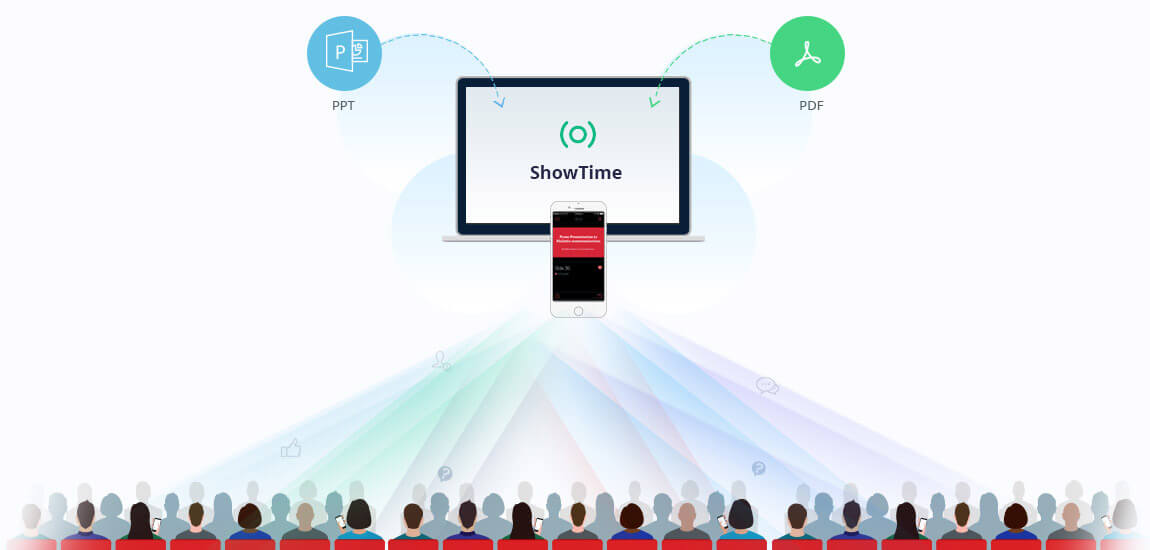
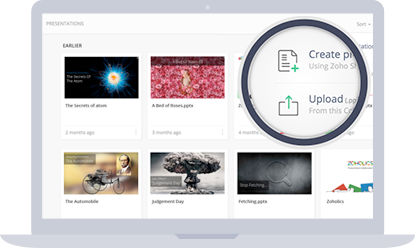
Zoho ShowTime is a very cool, free, tool that makes your presentations more interactive. It's easy to setup an account and then get started using it. You can import an PowerPoint presentation or PDF or create a new presentation right in it. (if you use Google Slides, just download it as a PowerPoint and then import).


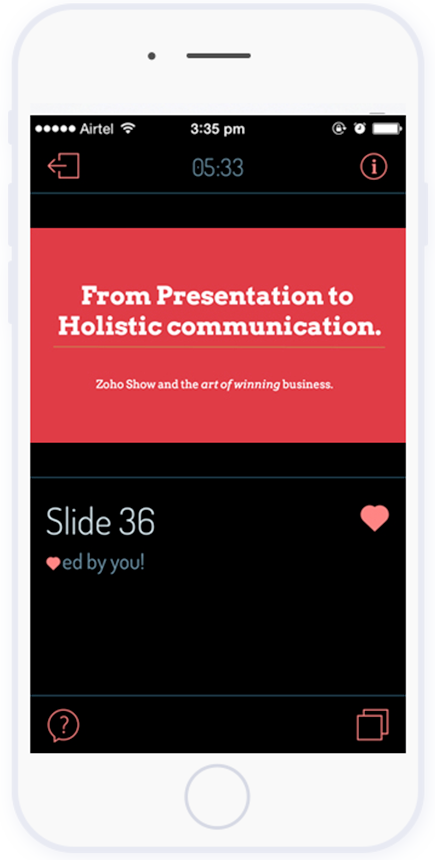
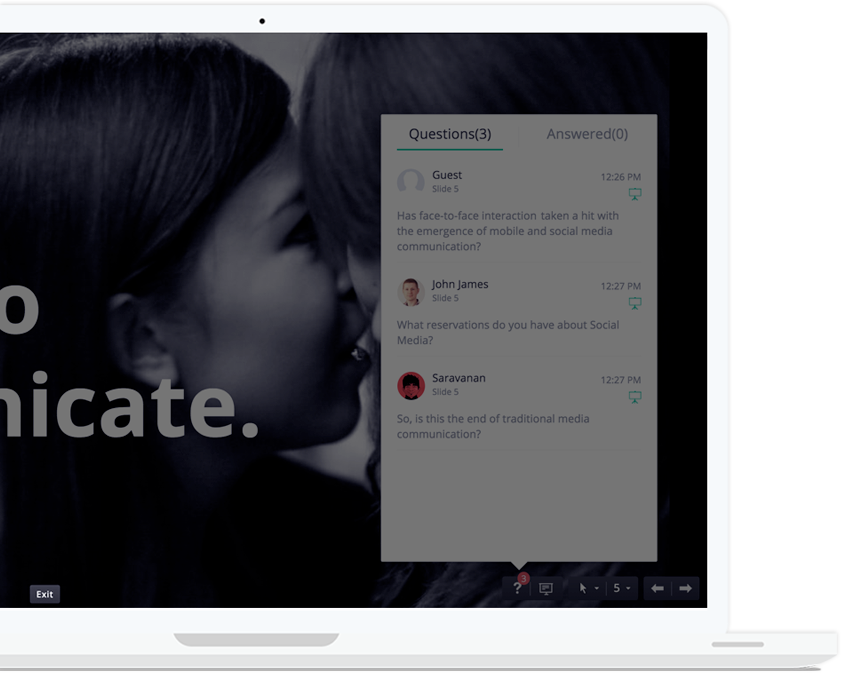
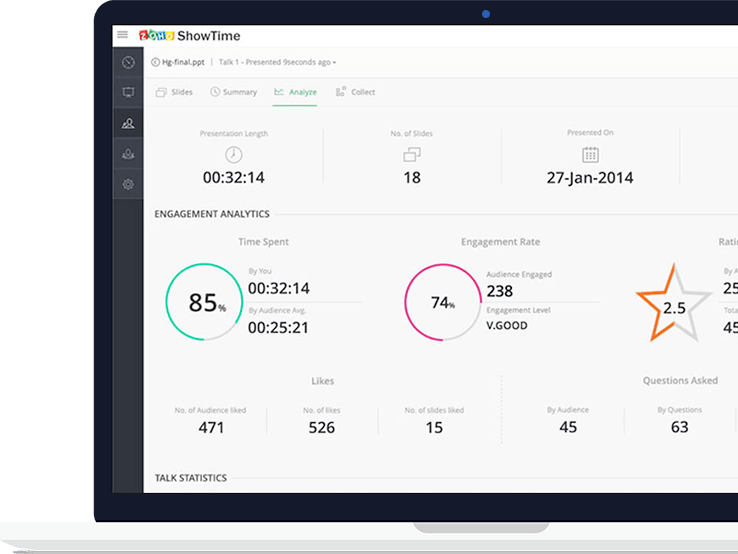
What's different about Zoho ShowTime is that it gives you live interaction with the audience as well as analytics. You can stream the slides out to the audience's devices, encourage your audience to like slides and ask questions (which you can answer immediately or later), project these questions to everyone, and then get metrics about the presentation and audience.

Zoho ShowTime mobile (iOS and Android) apps: https://www.zoho.com/showtime/mobile-apps.html 


Take a look at how it works.


The audience gets to follow along on their device, like slides and ideas, ask questions and then rate the presentation at the end.


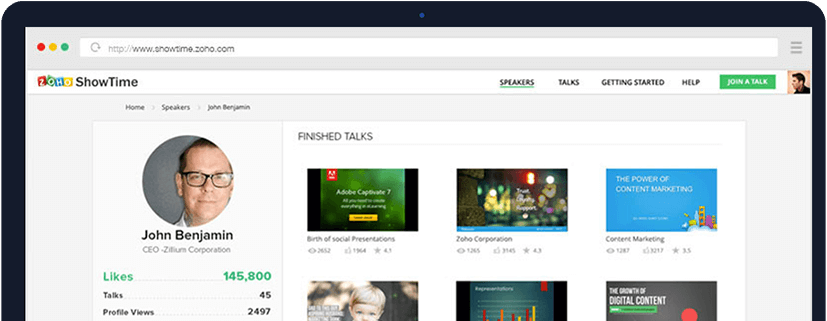
You get an online profile with all of your presentations and metrics to share and to use to better yourself.


It is free, easy to use, and will help engage your audience and improve your presentations.

Great for teachers, trainers, and students.


Related:

Zoho - suite of on-line business, productivity & collaboration apps


--


Thursday, May 7, 2015

Emaze - beautiful web based presentation app


Emaze is a free, online presentation tool that is easy to use and has some beautiful features. You sign in, select one of their amazing templates, create your presentation, and share it. The presentations are created in HTML5 so they are available on any web-enabled device. Presentations can be traditional slides, videos or even 3D. You can create a presentation from scratch, or import a PowerPoint. When you import a PowerPoint file, it will ask you which Emaze theme you want to use and then it will apply that theme to the file.

They even have an offline viewer that you can use to be able to view your presentation and show it when you don't have an internet connection.

There is also a library of presentations that you can use and modify.

The free account is very good and you can upgrade to paid accounts for more features. They also work with school districts and colleges on volume licensing for premium accounts.

It's a nice alternative to other products like PowerPoint and Google Slides with some different visual features.


Here's a video about it:


Related:

Prezi - the zooming presentation editor

PowToon Edu - create awesome presentations and animated videos

Friday, December 5, 2014

Free PDF to PowerPoint converter


Cometdocs logo


Cometdocs has a great website that allows you to Convert your PDF files to Word, Excel, PowerPoint and more. You can convert various formats to PDF and store & share your documents for free. This is very useful for educators with PDF files that they need to edit and update.

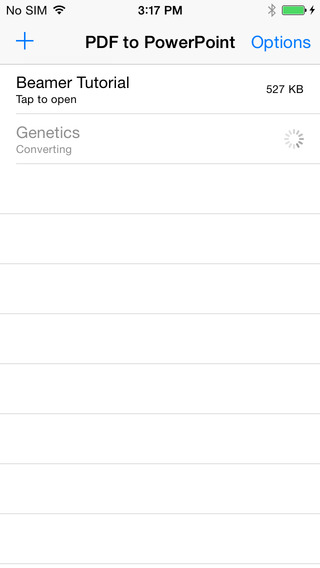
They also have a new, free iOS app called PDF to PowerPoint. https://itunes.apple.com/us/app/pdf-to-powerpoint/id908959422.  It converts presentations trapped inside the PDF format for further reuse and editing. The converted document looks the same as the original, with all images, slides and text layout perfectly preserved.

Here are the features:

- It converts just about any PDF - big, scanned, complex, upside-down, non-English letters, etc.
- Images and slides are recognized accurately, and end up looking exactly like the original PDF.
- No limits on the number of conversions.
- It can be used for free
- The app is amazingly lightweight.
- The output format is pptx.

The app can be used for free, without limits on file size, number of requests or conversions. However, free user might be promted to wait for a bit, to ensure conversion completion. Premium lifetime users
don’t have to wait at all.

iPhone Screenshot 1
iPhone Screenshot 2


Thursday, April 26, 2012

PowerPoint Palooza - over 220 PowerPoints on History/Social Studies


PowerPoint Palooza is a site that has over 220 PowerPoint presentations from teachers and students on History and Social Studies topics, that you can download and edit and use in your classroom (just give credit to the original creator).

This is a great resource for teachers and students to find some presentations on different topics in history. While I don't advocate teaches do lots of lecture, they can be used effectively in a classroom.


Wednesday, March 14, 2012

oomfo - add stunning, interactive charts and graphs to PowerPoint


oomfo (beta) - Interactive charts add-in for Microsoft® PowerPoint®

oomfo is a free add-in for Microsoft PowerPoint that lets you incorporate stunning, interactive, animated charts and graphs into your PowerPoint presentation.

It's very easy to install and use and it only takes a few steps to insert a chart. Charts can be sliced, rotated, and turned into 3D charts. You import your data from a spreadsheet and then create the chart exactly how you want it.

Flexible Chart Data 
Many Chart Types 

This is a great, free add on that can make data more interesting and easy to understand and visualize.


Related:

Chartle - free simple and interactive charts online

Using PowerPoint for Unit and Lesson organization


How to Embed Video in PPT and package in single file


Monday, January 2, 2012

How to Embed Video in PPT and package in single file


Lots of teachers and students use Microsoft PowerPoint in education. I use it for many things and it is very powerful.

However, embedding videos and having them actually play correctly is not straightforward and if you move the video file or PowerPoint file without the other, things get ugly.

Freewaregenius has a nice article that tells you now to covert the video file into a flash file and then embed it directly into a single PowerPoint file. If you use PowerPoint and videos, this is a great resource for you.


Friday, July 22, 2011

Knovio - create online presentations easily


Knovio is a new service that allows you to easily create online presentations. It is currently in private beta, but you can request access from their main page. It is free to use and lets you turn PowerPoint slides into video presentations in your browser with no hardware or video software needed. All you need is a webcam and microphone.

Knovio is very easy to use. It takes 3 steps to create and share your presentation online. First, you create and then upload your PowerPoint presentation to the site. Then you record the video of you doing the presentation with the slides, and then you share the finished product.


Related Articles:

Present me - easy way to record and share presentations


Desmos - create media rich educational content online

PhotoPeach - easily create and share photo slideshows

Prezi - the zooming presentation editor


Thursday, June 9, 2011

Present me - easy way to record and share presentations


Present.me is a service that allows you to easily record your presentation with video and audio linked to the PowerPoint presentation. You upload your PowerPoint slides, and then present.me converts them to a web based file. Then, you go to the site, click record and present in front of your web cam, clicking your slides just like you normally would. Now you have a single file that has your slides, you, and your voice all linked. You can then share it with others, embed it, or just keep it for yourself.

This is great for recording review sessions or lectures or meetings, etc and then having them available for future review and viewing. It's easy to use and very useful.

Here's an example of how the presentation will look. The slides are on the left and the video on the right. You can skip around to other slides by clicking on the thumbnails at the bottom, or move the slider. It's easy on the eyes to watch also.


There are tutorials and help information on the site, and they even have a Presentation Academy that gives tips on creating and delivering a great presentation. There is also a gallery of present.me featured presentations.

There is a free account that has some limitations: recordings are limited to 15 min, you get 10 recordings per month, there is a 50MB file limit and there are ads. You can upgrade to accounts with more length, number of recordings and file sizes. The Plus account is $29/month and the Max account is $100/month.

I am thinking that with the 15 min limit, I could use it to create study and review guides for my students. Especially since it is so easy to use compared to some other presentation recording systems I've tried. Groups of teachers or schools could probably share an account too.

Friday, January 14, 2011

mybrainshark - online video presentations


I just learned about a site, myBrainshark.com which is a free technology tool that can be used by teachers and their students. myBrainshark lets users add their voice to PowerPoint presentations to create online videos for free. Attachments, interactivity (such as survey and quiz questions), background audio, photos and more can be incorporated, too. On top of that, it’s easy to track who viewed your presentation.


With myBrainshark.com, users can recap a lecture (using voice to give additional context to slides), provide supplementary information, administer a lesson and quiz, and even create a school project.

Here are some examples of myBrainshark.com presentations, created for free by users:

·         School Project – “Hatshepsut
·         Instructions to Students – “Book Report Guide to Success”
·         Lecture Notes – Chapter 8:  Personality Theories
·         Proposals – “Gifted Education Presentation
·         Back-to-School Staff Update – Warren County  School CTE Update

There is also a a brief myBrainshark demo – available here

I tried it out and it was pretty easy to use. What I think would be a great use for this is using it in a class when lecturing. Then, when you post the PowerPoint, your voice is also included. Or, teachers could use this to create online lessons for students. 


Tuesday, January 4, 2011

Sliderocket - online presentation software


Sliderocket is something I've heard about but never used until today. It is a standalone site but also is a web app in the Google Chrome OS Store, so I started trying it out.

Sliderocket is a free online presentation software (similar to an online version of PowerPoint or Google Docs) that has some really great features. You can create a new presentation or even upload an existing PowerPoint presentation to the site. You can easily add photos from your library or from the internet with Flickr as a choice. Videos are simply installed and embedded. Slide transitions are supported along with allowing viewers to comment on each slide. You can embed Twitter feeds as well as a variety of other features.

Sliderocket has a very good demo/tutorial that walks you through the steps of using it. There is also a good help section and plenty of people using it that post information online.

I found it easy to use and very powerful and will be using the Chrome OS webapp version quite a bit now.

It's very useful for education. Students can interact and collaborate on presentations. Teachers could post presentations and have students comment on the slides. The presentations are also more interactive and have some cool features that PowerPoint doesn't have.

You can even integrate SlideRocket into your Google Apps account.

There is a free version with some limitations and a fee-based version with more features.

Tuesday, December 1, 2009

iSpring - Free PowerPoint to Flash converter


I just learned about iSpring Free, a free PowerPoint to Flash Converter from the Connecticut Discovery Educator Network. It is easy to use and free. What a great way to share PowerPoint presentations on the web or in other applications. (once again, my PLN comes through with great resources).

It is a free download from the site. Install the software, open your PowerPoint presentation, click Quick Publish, and you will get a .swf file from your presentation. It will install a toolbar in PowerPoint. The toolbar has the Quick Publish button, as well as the ability to insert Flash and YouTube videos into your presentation.


I converted a 162 slide PowerPoint presentation (32 MB) to flash in 5 minutes. Not bad at all.


Converted file:
Very easy to use, quick, and FREE.

Friday, November 13, 2009

Prezi - The zooming presentation editor


I had learned about Prezi over the summer, but never got a chance to work with it until this week. Today I finished my first presentation. It is a presentation I am doing for a professional development session next week at my school on Google Applications and some other free things for teachers.

I found Prezi very easy to use and once I started playing with it a little, I started having fun with it. I'm going to continue to explore more features in it, including automatic timing of each part, frames, grouping, and more.

Try it out as a nice alternative to just using PowerPoint.

Monday, October 19, 2009

PowerPoint Tutorial


PowerPoint in the Classroom is a great resource for those just learning PowerPoint or those who want to learn more about it and how to use it in the classroom.

It is really easy to use. You can go through it in a specific order by clicking "1" and then clicking "next" when done with each page. Or, you can jump around using the navigation.

This is also a good site to share with students who are starting to learn PowerPoint.


Wednesday, September 30, 2009

Great tip for better PowerPoint presentations


180 Technology Tips is a great site that I have written about before, twice. It is that good that I want to remind teachers at the beginning of each year.

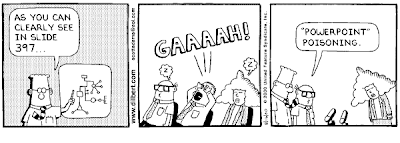
Today's is a great tip on making better PowerPoint presentations (works for any presentation software). This is a great read for teachers and students.

We don't want to have this happen:


Wednesday, May 13, 2009

Free Certificate Maker Web Site


MyAwardMaker is a free site with templates for certificates that you can download. They have a lot of different templates and they are organized by topic. 

To create a certificate, you pick your template and then download it to your computer. You need to have Adobe Acrobat Reader (version 8.0 or later) to open the certificate. You can get Acrobat Reader HERE if you don't have it. 


Once you open your certificate, you can then enter text into the open spaces and print it out. You can not save the certificate with the text added to it, but you can keep the template forever. You can also just print out the template and hand write the information.

Microsoft PowerPoint also has some certificate templates that you can use. You click on Design Templates and then go online. The site for the award templates is HERE. You then edit the slide and print it out.

I suggest printing them out on a color printer for best results and best appearance.

LinkWithin

Related Posts Plugin for WordPress, Blogger...