Showing posts with label google classroom. Show all posts

Tuesday, May 22, 2018

CK-12 and Google Classroom - great resources that are better together

Assign CK-12 Content Direct to Google Classroom

Did you know you can assign content from CK-12 directly to Google Classroom?

CK-12 has some amazing and diverse resources to help students learn and explore. It is one of my single most favorite resources to share with teachers and students.

You can assign reading material, adaptive practice, videos, simulations, and more from CK-12's standards-aligned content library directly to your students in Google Classroom.
  • Reads
  • Videos
  • Real World Applications (RWAs)
  • Adaptive practice
  • Quizzes
  • Simulations (SIMs)
  • PLIX

Grades are automatically reported to your GradeBook in Google Classroom saving time and effort.

You can connect your existing CK-12 account by signing in, going to account settings and connecting your Google account under "Connected Social Accounts" section.


Related:


.

Monday, May 23, 2016

Lots of great new things coming to Google Apps and Chromebooks!!!


Google Apps for Education New logo.pngchromebooks-apps-flyout-in.jpg


Google Apps for Education and Chromebooks have become truly awesome resources for schools and Google just keeps improving them.

Here are some of the recent announcements:


Android apps are coming to Chromebooks! - some Android apps have already been available for use on a Chromebook. I've been using the Evernote app for a while and love it. But in order to get them to work, developers had to do some work themselves. With this new announcement, the Google Play Store and most of it's app will work with Chromebooks. Three models are getting access in June with more getting access later. See this link for full details on which Chromebooks will get this and when. This is huge for schools as they will be able to benefit from the low cost and ease of use and management of Chromebooks, and use all of the great Android apps that are out there.

With this announcement, touchscreen Chromebooks are even more functional for schools. For specs, 4GB RAM is always my suggestion and 16GB drives should be fine unless you are installing a ton of apps and syncing lots of data. I have over 100 apps on my smartphone, sync Evernote offline (9,000 notes) and sync Google drive offline and I am only using 9GB (18GB if you count the hundreds of photos and videos of my daughter).

I also think that this would be a good time for Google and OEMs to work on a 7" Chrome OS tablet! Think about it - all the Android apps in a small form factor for younger students or mobility, with the management features and ease of use of a Chromebook!


Google Classroom updates:
  1. Interact with other apps and systems - more software and systems will be able to interact with more data in Classroom. One example that teachers will love is the ability for Gradebooks and reporting systems to sync grades with Classroom, eliminating the need for teachers to manually transfer grades.
  2. Teachers can schedule assignments, questions, or announcements to post at a later date. The post is then automatically published to the class stream at the scheduled date and time.
  3. Teachers can poll their students using multiple-choice questions and allow students to see a summary of their classmates answers.


Cover art
Science Journal - a new app that is a digital science notebook that allows students to record data from sensors on an Android phone or connected device, take notes, observer, interpret, predict, create graphs and much more.


Google also announced that they are making their own 3D/Virtual reality hardware that will be prefect for schools - this will fit well with Expeditions and allow students to explore the world, and beyond, right from their classroom.


Some exciting news for schools!!


More Resources:

Benefits of Google Apps and Chromebooks for Schools

Friday, September 18, 2015

rosterSync for Admins and Teachers - sync your SIS to Google Classroom


rosterSync is a great new, free tool from New Visions Cloud Lab, the same people behind the Chromebook Inventory Tool. rosterSync has two versions: Super Admin and Teacher.


rosterSync: Super Admin Edition
The Super Admin edition allows GAFE super admin's to create and update Google Classroom, including populating classes, using CSV exports from Student Information Systems. SIS systems that are currently supported include Blackbaud, Infinite Campus, NYC DOE STARS and PowerSchool.

This tool means that teachers don't have to create classes and have students join using a code.


rosterSync: Teacher Edition
The Teacher Edition allows teachers to sync a Google Classroom course roster -- including student email addresses -- directly with Google Sheets for handy use with Add-ons like Doctopus, formMule, autoCrat, formRanger, and others. This will save teachers and students who use those tools a lot of time. 


Related:


Google Classroom resources for Educators

Thursday, July 30, 2015

CK-12 Integrates Its Awesome Educational Resources With Google Classroom


CK-12, a great resource for free e-textbook and curricular resources, has just announced that it is integrating with Google Classroom. Google recently updated Classroom to allow third parties to integrate and share with Classroom and CK-12 has just done that.

The Google Classroom share button is now in CK-12 so teachers and students can access all of the content in CK-12 from within Google Classroom. A teacher can easily share any textbook, video, activity or assignment they find in CK-12 right into Classroom for their students to access.


Check out this video that shows how it works:


Related:


-

Monday, July 13, 2015

Google Classroom update - students can join class - teacher in different domain


Google Classroom is an excellent tool from Google that allows students and teachers to collaborate and communicate and allows teachers to assign work to students, collect that work, grade it and comment on it and return it to the student.

One limiting factor in using it was the fact that the students and teachers had to be in the same Google apps domain. Many schools use separate domains.

That has now changed. You can whitelist each domain in each admin console and allow them to work together in classroom. Simply follow the instructions here: https://support.google.com/edu/classroom/answer/6173514


It's easy to do and make Classroom accessible to even more schools.


Google Classroom Resources for Educators


-

Wednesday, May 6, 2015

Google Classroom Mobile Apps get even more Great Features!


Google Classroom is Google's learning management system, allowing teachers and students to share assignments and communicate online.

It is easy to use and works great, but there were some features teachers were asking for. Well, Google listened!

Google announced some great additional features last month and has just announced some new features for the mobile apps:

Teachers can now create and edit assignments, make copies of attachments and attach photos to assignments as well as grade assignments on their mobile devices. You can even use your mobile device to take a picture and create an assignment from it (paper, whiteboard, object, etc). 

These new features make Google Classroom even more useful via mobile apps and can help teachers get more done and be more efficient.


Related:

Wednesday, April 22, 2015

Google Classroom gets some new features that we've been asking for


Google Classroom is Google's learning management system, allowing teachers and students to share assignments and communicate online.

It is easy to use and works great, but there were some features teachers were asking for. Well, Google listened!

Google has just announced some new features:

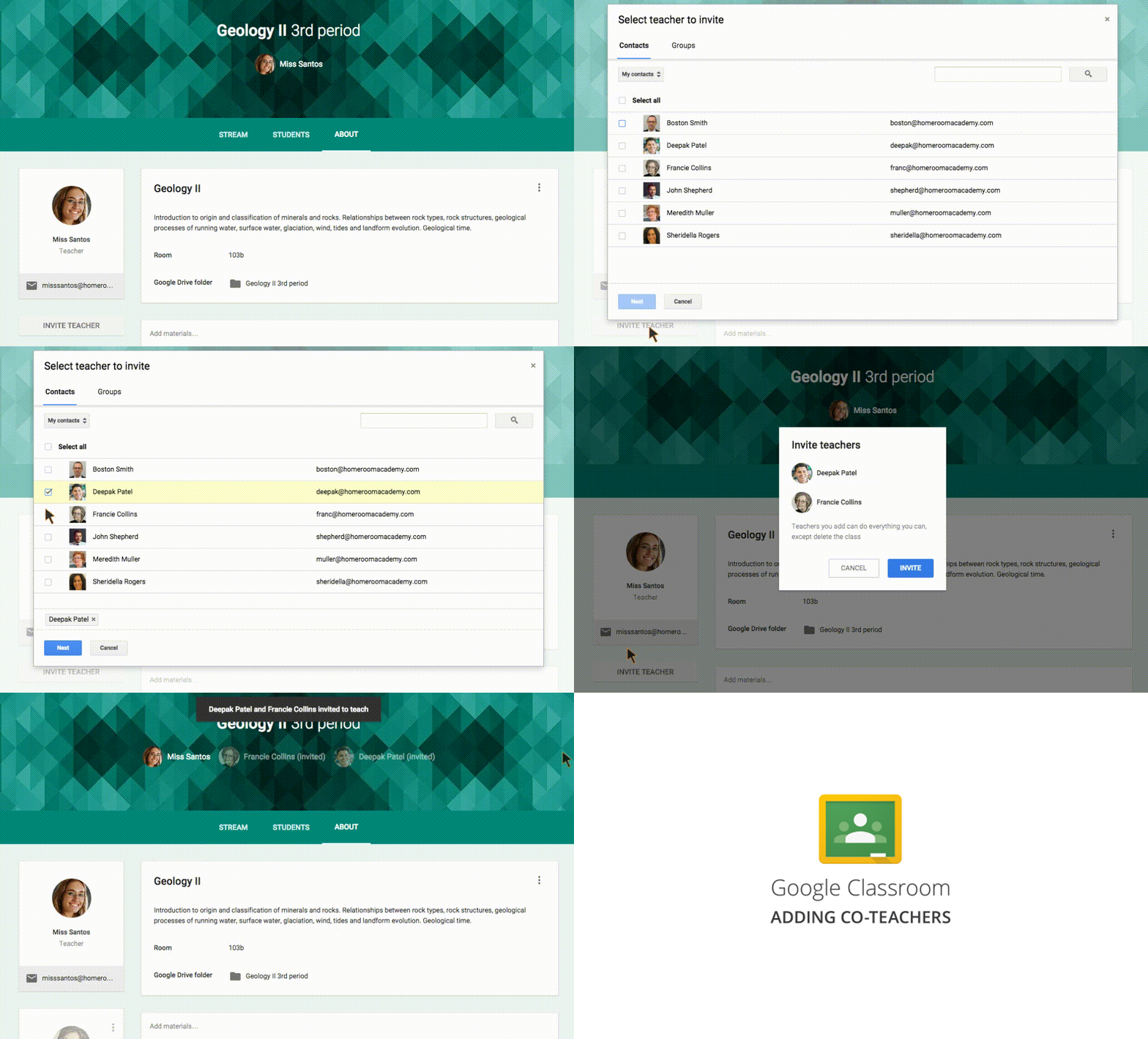
1. Invite another teacher to your class- teachers who co-teach, or want special ed teachers to have access to course work, etc can be invited to join the class as a teacher. Multiple teachers can now work together in the same class. The additional teacher(s) can create assignments and announcements, view and grade student submissions, participate in comments on the class stream, invite students to the class, and receive email notifications related to the class


2. Drafts of assignments and announcements - teachers can now create announcements and assignments as drafts and then post them when ready. This is very useful for future planning and for giving other teaches a chance to review the posting first.

When you start entering an announcement or assignment, you can click the arrow next to the "Post" button and select "Save Draft".


3. Grades now autosave as they are entered. Now you don't have to worry about losing a grade.
4. Notifications - teachers and students will now receive email notifications when private messages are left on assignments (great feature!)

One thing I've always liked about Google is how they are always improving their products, usually from user requests. 


Related:


-

Wednesday, January 14, 2015

Google Classroom updates - a mobile app, teacher assignments page, archiving classes!!


Google has just announced some awesome updates for Google Classroom.


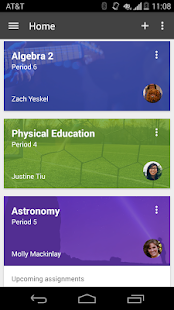
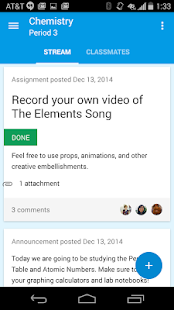
The first one is that they have launched a mobile app for both Android and iOS (also available in Google Play for Education). This is one of the biggest features I have heard teachers talking about.


Google Classroom - screenshot thumbnailGoogle Classroom - screenshot thumbnailGoogle Classroom - screenshot thumbnailGoogle Classroom - screenshot thumbnail

The mobile app allows students and teachers to take a photo and attach it to their assignment (really useful), attach images, PDFs and web pages from other apps to their assignments, and offline access to their assignments and streams.


Another new feature is the Teacher Assignments Page. This page gives quick access to all assignments and status across all classes. 


The other new feature is another heavily requested one, Archive Classes. This allows you to move your old classes out of the main page, but still allow you to access information in them. Teachers and members can view archived classes, but cannot make any changes or turn in assignments. 


These updates and improvements are very welcome features for teachers, and shows that Google listens to it's users. 


--

Google Classroom resources for Educators

Google Classroom 
new resource for teachers to manage classes, assignments, student work, and to communicate with students.

https://classroom.google.com/ (sign in with your bridgeportps.net account)(you must request an invite first - see above link) Open to all soon.


  1. log in
  2. create class
  3. tell students the class code and have them login and join the class
  4. share and collect assignments, news, information and more
Introduction to Google Classroom: http://www.edudemic.com/introduction-google-classroom/ 

Google Classroom Help and Support http://hubpages.com/hub/Google-Classroom-Help-and-Support 

3 Different Things you Can Do with Google Classroom

Google Classroom tips, tutorials and more

Google Classroom Tutorial

12 Great Ways to Start Using Google Classroom Now


Tuesday, December 23, 2014

Some ideas for Course Management Systems and Apps


There are a lot of course management tools available for educators, including Blackboard and PowerSchool, that allow educators to do attendance, grading, post and organize resources and lessons, and interact with students. Many of them cost money. Moodle is free, but you have to pay to host it somewhere, or host it yourself. There are some great, free alternatives available. Here's a list, in no particular order.


Google Classroom - web based, integrated with Google Apps, easy to use. Post announcements and assignments - students turn assignments in electronically, and then you can return them with a grade and comments. If you are a GAFE school, this is a great option.


Schoology -Schoology is a free course management system for educators that allows them to manage their lessons, post resources and assignments, create quizzes, link to additional resources, conduct online courses, provide one-on-one help sessions and host discussions.


Edmodo - Edmodo is a tool that many teachers already use and more are discovering every day. Edmodo is a free social learning network for teachers, students and schools, providing a way to connect and collaborate, share content, access homework and grades, and much more.


My Big Campus -  My Big Campus allows schools and teachers to create a virtual classroom to use with their students. There is a resource library with videos, web sites, wiki’s and more. You can create groups and blogs and use the messaging system. Teachers can create a classroom calendar and even create, assign, and grade student assignments. The teacher can keep up with what the students are doing through the notification system too. Teachers can upload files to share with their students.


Coursekit - Coursekit combines a variety of tools for educators to use for extending their classroom or even creating an online course. Discussion groups, assignments with grading, resource sharing, a class calendar, and a community forum are just some of the tools available. Educators can post links, videos, and other files, hold online discussions, and even write a blog post.
UPDATE: It has changed names to Lore http://lore.com/


You can also use Blogs, Web sites, and Wiki's to organize and share lesson materials, have discussions, and create assignments. My district uses PowerSchool for attendance and gradebook, but I have used classroom blogs, a class website, and Google resources to share resources, post information, and communicate with my students.
Here is my old classroom site and Physics blog as an example:
https://sites.google.com/site/dandradeedusite/Home
http://mrandradesphysics.blogspot.com/


I also know some teachers who use Google+ as their CMS using Circles and posting resources and announcements there and most teachers are now using Google Drive in some way to host files and share them. Evernote can also be used - share notes with students and they can share notes back to you.


What course management system do you use? Why do you like/dislike it? What would be your perfect course management system?


Related:
My most used/favorite Apps and how I use them

-

My most used/favorite Apps and how I use them


EdTechGuy

I have a few apps and resources that I use on a daily basis. I thought this might be a nice way to end the year.

Here they are and how I use them:


Email - I use Google's Inbox for most email, and Outlook at work. In Outlook, the Evernote Clipper is my main tool to get things out of Outlook and into Evernote where I can use it. I love Inbox for email as I can create reminders, add reminders to emails, more easily categorize and organize them.


Evernote - I use this for everything. Here are some examples:
 http://educationaltechnologyguy.blogspot.com/2014/12/examples-of-using-evernote-as-teacher.html


Google Apps, especially Drive, Classroom, Chrome browser, Calendar, Blogger, and Sites - use Drive for all of my files that I use with classes and all of my legacy files (most new things are in Evernote). Classroom for assignments and communicating with students, Calendar for organizing, Blogger for this blog, Sites for technology resource sites and classroom sites.


Social Media - Google+, Twitter, and Facebook - Google+ is my go to for education and technology resources, connections and sharing. I love that you can have longer posts and discussions than on Twitter. I also use Twitter for education and technology resource finding. Facebook is just for personal connections.
Google+ is a thriving community and I find some great discussions and resources on it.


Feedly - I subscribe to a lot of sites and blogs and use Feedly to organize and read them, as well as easily share them to Google+, Twitter and even Evernote. This is where I find a lot of resources for use in my job, life and for this blog.


Pocket - I use this to save articles and blog posts for later reading/action, including reading them offline later.


Tech & Learning - great resource for educators and administrators on educational technology. I go subscribe to the site and blogs and magazine.


Hardware- HTC One Android Smartphone, Nexus 7 tablet, Chromebook
-- access every app and piece of data on any of my devices, anywhere.
My smartphone comes with me everywhere. I use my tablet for browsing social media and watching Netflix and my Chromebook is my main work horse.


Related:


My Favorite Resources for Teachers and Students

Technology I'm using daily as a School District CIO

Technology I use on a Daily Basis - updated for 2011


-

Monday, December 22, 2014

Google Classroom Student Quick Guide


College Tips by Google

Alice Keeler's blog has been a great find for me as she posts a lot of items about Google apps, especially Google Classroom. You should definitely check out her blog.


She created a great Student Quick Guide for Google Classroom. Go here to view it: http://www.alicekeeler.com/teachertech/2014/12/01/google-classroom-student-quick-sheet-guide/


LinkWithin

Related Posts Plugin for WordPress, Blogger...