Showing posts with label chrome browser. Show all posts

Friday, May 8, 2015

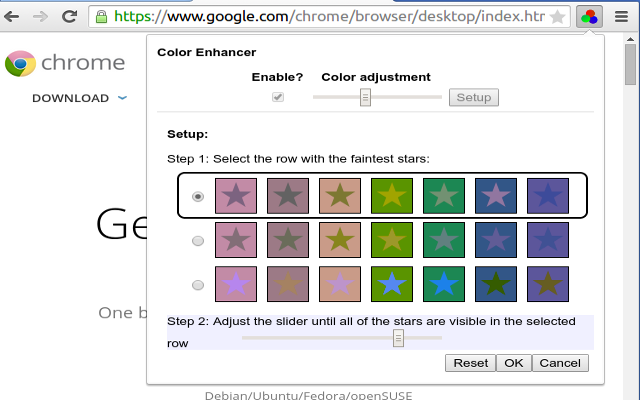
Color Enhancer Chrome Extension - very useful for people with color vision difficulties


Extension

Google Chrome (browser and OS) has some great built-in accessibility features, as well as some excellent extensions that add accessibility features.

Google just released a new one that is very useful for people with vision issues, especially with colors. Color Enhancer is an extension that allows the user to easily select a color filter that improves color perception. It's very easy to use and works nicely. I have a mild red-green color deficiency and this helped me with some websites.

Click on the extension and follow the directions. It's that simple.


Related:

Google Accessibility Features in Chrome (OS and Browser)


-

Thursday, April 9, 2015

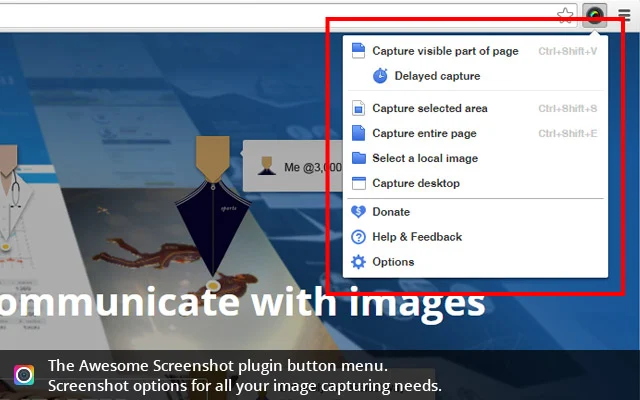
Awesome Screenshot - screen shot app for Chrome (replacing webpage screenshot)

Extension 

I was using Webpage Screenshot to do all of my screen shots for this blog and other projects and then I noticed it missing from my tool bar the other day. I went into Extensions and found that it was disabled by Google for violating the Chrome Webstore Policy. Then I saw this article that explained that the app collects an enormous amount of personal data and violates Google's policies. So, I looked for something else and found:

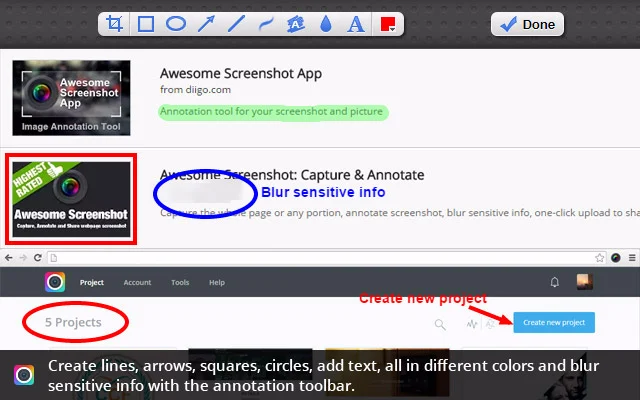
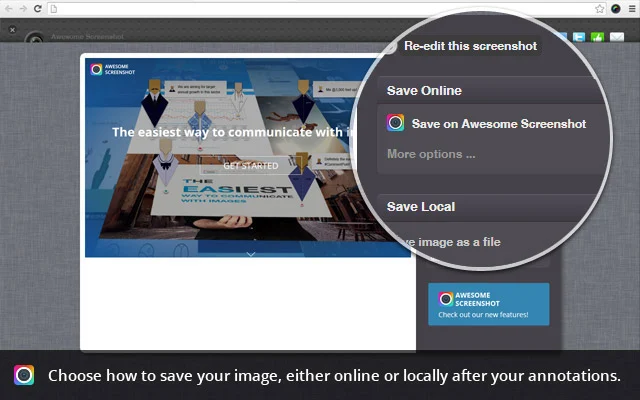
Awesome Screenshot is a great, free web app that takes screenshots in Chrome (OS and browser). You can capture a selection, the visible part of a page or the whole page. You can store images on their site or download them to your own device. It supports PNG formats and even supports horizontal scrolling on the page when capturing. You can also annotate and edit images.

It's very easy to use and works great and is great for anyone needing to take screen shots.


Related:

Web-Based Image Editing Resources

Image Editing Resources


-

Friday, February 27, 2015

PowToon Edu - create awesome presentations and animated videos


PowToon is a free web app that lets you create presentations and animated videos. PowToon Edu is a free Chrome app extension that does the same on Chromebooks and Chrome browsers. There is also an education page.

It's easy to use and there are some great resources on the site to help you learn how to use it. It can be used by teachers to make their presentations more engaging, and by students to create presentations for their projects.

Once your PowToon is created, you can export it to YouTube or download it. The Chrome extension connects to Google Drive.

There are some short video clips to get you started. It's easy to create a presentation using the build in tools and intuitive interface. Many users say it's easier to use than PowerPoint or Prezi. There are built in characters, props, images and animation tools.

PowToon is a free business animation software and PowerPoint alternative


Take a look and try it out.


-


Google Accessibility Features in Chrome (OS and Browser)


Google Apps and Chromebooks, and the Chrome Web Browser, offer a tremendous amount of accessibility features to help vision and/or hearing impaired students. 

Google Accessibility, Using Google Products, http://www.google.com/accessibility/products/, contains a wealth of information and resources, along with apps, that can help students, and teachers. 

Chrome Toolbox http://www.chrometoolbox.com/ - This collaborative space was created to celebrate the many Apps and Extensions made by developers which serve the accessibility needs of individuals with disabilities. 


Accessibility Options on Chromebooks   http://www.chromestory.com/2013/02/accessibility-options-on-chromebooks/

Some of the main features:

Google updates Drive and Docs with improved screen reader, Braille display, and accessibility phone support


Speech to Text and Text to Speech
    Introduction to Read & Write for Google http://www.youtube.com/watch?v=bPqbk7TJKLo&feature=youtu.be
    • Boost reading confidence. Make the web and Google Docs accessible to students with learning difficulties, dyslexia or ELL/ESL.NEW! FREE for TEACHERS! Teachers get a FREE subscription to Read&Write for Google. To register and activate your premium subscription, go to rw.texthelp.com/freeforteachers after installing Read&Write for Google. Read&Write for Google™ offers a range of powerful support tools to help students gain confidence with reading and writing. • Hear words, passages, or whole documents read aloud with easy-to-follow dual color highlighting • See the meaning of words explained with text and picture dictionaries • Hear text translated into other languages • Predicts the next word as you type • Highlight interesting or relevant text and collect it for use in other documents Read&Write for Google™ is a friendly browser add-in for use with PCs, Macs and Chromebooks. It works with web pages and common file types in Google Drive, including: - Google Docs - PDF - ePub - KesSpeech Input, Simplify and Summarize Now Part of Read&Write for Google!


    Increased accessibility with Braille display support for Google Docs, Slides and Drawings
    If you use a Braille display, you can now enable Braille support in Google Docs, Slides and Drawings to read and enter text. This option is currently available for Google Chrome and Internet Explorer.

    http://googleappsupdates.blogspot.com/2014/06/increased-accessibility-with-braille.html


    Evernote - another great, free application - also has some accessibility features and extensions for Chrome.


    Evernote Clearly - one click for distraction free online reading - Clearly is a browser extension that eliminates ads and other parts of a web page and just shows the article. This eliminates distractions, helping students read the article. It also has text-to-speech capabilities to read the web page to the user. 


    Monday, February 9, 2015

    Chrome (Browser and Chromebook) Extensions - my favorites and recommendations


    I am a heavy user of Google Apps including Chrome and Chromebooks. These are the extensions that I use and feel are some of the best and most useful and consider a must have for all Chromebook users. Title of extension links to Google Play store. Link at end of entry is to other articles on how to use it.


    Extension
    Clearly - Clearly makes blog posts, articles and webpages clean and easy to read. Save them to Evernote to read anywhere. - great for students as it eliminates distractions on the web pages and makes it easier to read and understand. Evernote Clearly


    Extension
    Evernote Web Clipper - Use the Evernote extension to save things you see on the web into your Evernote account. - save web sites, online files and more. A must have. Evernote for Education Resources.


    Extension
    goo.gl, the Google URL shortener - shorten URLs, and share with many different services! - Very useful for sharing links with others, especially if you want them to write it down. Google URL Shortener Features


    ApplicationApplicationApplication
    Google Docs, Slides, Sheets - create, view, edit and share documents, presentations and spreadsheets with others. Another must have. Google Apps Resources for Education


    Application
    Google Keep - notes and lists - Quickly capture what's on your mind and share those thoughts with friends and family. - great for quick notes and reminders.  Google Keep Features


    Extension
    Google Translate - View translations easily as you browse the web. Excellent for ELL students and Foreign Language classes. Google Translate features and languages.


    Extension
    Office Editing for Docs, Sheets & Slides - View and edit Microsoft Word, Excel, and PowerPoint files with Google Docs, Sheets, and Slides - another must have. Who needs Office anymore?! Google Docs Editing for Office


    Application
    Pocket - save articles, videos and more to read later. I save things from my Feedly account here to read later and then can save from here directly into Evernote. Pocket is one of my most used Apps.


    Extension
    Save to Google Drive - Save web content or screen capture directly to Google Drive. Great for saving online files right into your drive account.


    Extension
    Screencastify - simple video screen capture software for Chrome. Use to record lessons and classes for students to access later. 

    Extension
    Webpage Screenshot - The most powerful and freeware app for capture entire page, Save & Edit & Annotate & Print & Share - I use this to capture screenshots for blog posts.


    Application
    WeVideo Next - video creation and editing tools using HTML5. Great tool for using videos on a Chromebook. WeVideo Online Video Editor


    Related:

    My most used/favorite Apps and how I use them

    Contact me if you would like help with deployment, setup or training in Google Apps and/or Chromebooks.

    Resources to get Started With Google Apps and Chromebooks

    Google Apps and Chromebooks Web App Recommendations - a whole lot!

    Google App and Chromebooks Resources - learn how to better use them

    Tuesday, January 13, 2015

    What Browser - learn about web browsers


    Whatbrowser is a site from Google that explains what a web browser is and does. It tells you what browser you are using and provides links to other browsers to try.

    Google's research indicated that most people had no idea what a web browser is, so they wanted to educate people. The site will automatically detect what browser you are using. There are links to more information about web browsers, some useful tips. They also have links to the 5 major web browsers (Opera, Chrome, Firefox, Internet Explorer, and Safari) so that people can try a different one if they want. Obviously, Google hopes you'll pick Google Chrome, which is what I use.


    Each browser has different form layouts and do things a little differently. I find that a web browser is part performance, part personal preference. I use Google Chrome because it works great with all of the other Google Products I use. Some people use Internet Explorer because it's what came with their computer. Firefox has a huge number of add-ons that let you customize your browser. Explore each one and find the one that works best for you. All are free.


    --


    Thursday, October 25, 2012

    Google now has one click access to Docs, Sheets, and Slides


    Google just announced this week a nice addition to Google Drive - the ability to immediately start a new document. Instead of having to go into Drive and then click on New___, you can install Docs (documents), Sheets (spreadsheets) and Slides (presentations) as apps from the Chrome Web Store and use them to immediately start a new file. The shortcuts appear as apps on the new tab page in Chrome. Docs, Sheets, and Slides will appear in your apps list on a Chromebook by default. They will be automatically added to Chromebooks in the next Chrome OS update.

    This will make it even easier and faster to create new docs files using Chrome Browser or Chrome OS.


    Related:

    Google for Education Resources (lots of great resources for students and educators)


    Tuesday, September 11, 2012

    My Favorite and Most Used Tech, Apps and Extensions


    Every year people ask me what my favorite tech tools, apps, and other resources are and what I use on a daily basis. Every year, this changes a little bit. I just had someone ask me for a list of what I use the most and what my favorite Ed Tech resources are, so here you go. There are also some other great resources in the "Related" links at the end of the article.


    Evernote - Evernote, an electronic notebook with lots of great features, is my main tool. I have lesson plans, lesson notes, lesson resources, research, travel info, recipes, lesson schedule, meeting notes, attached files, clippings from web sites, to do lists, personal references, tech resources and instructions and so much more. It is the main app I use for almost everything. This year I am using Evernote with my students.


    Dropbox - Dropbox is a great file sync, backup, and sharing service that you can use for free. The rest of the files I need to use that are not in Evernote or Google Drive are setup in my Dropbox so that they are synced on my home and school computers and my smartphone. I can access my files from any web browser also. I never have to worry about losing a flash drive or forgetting to copy or email myself a file.



    Google - I know this is kind of vague because Google has so many services, but I use a lot of them. Blogger for this blog and my class blogs, Sites for my class website, Gmail, Google+Calendar, Google Drive and Docs, search and so much more. Here's more on Why I use Google Products as an Educator.

    Here are lots of great Google for Education resources and tips.



    Google Chrome is my browser of choice. It's fast, secure, easy to use, has great extensions and bookmarklets, and just works great. I have it automatically open up my most used tabs: Gmail, Google Calendar, PowerTeacher, Blogger, Tweetdeck, Edmodo and Evernote. I also have bookmarklets for saving pages into my Google Bookmarks, accessing school systems, and much more.

    Extensions:
    Evernote Clipper - clip web pages and articles into my Evernote notebooks for reference or sharing with students. 

    Goo.gl URL Shortener - shorten web page URL's for better sharing and tracking of sharing.

    Webpage Screenshot - take screenshots of web pages, edit and format them, and save them.

    Evernote Clearly - clean up a web page for easier reading and clipping.

    Shorcuts for Google - one click link to all of Google's different apps and services. 

    Aviary's clipping extension for Chrome to clip graphics from the internet and edit or modify them for both my edtech blog and lesson plans and resources.


    I use Tweetdeck in Chrome browser to access my PLN on Twitter. It is easy to use and has great features like multiple columns and scheduling of tweets.


    Edmodo is a free, learning management system that is full featured and easy to use. I'm using it for the first time this year with my students to share resources, have online discussions, post assignments, and offer online help. Here's more about my adventure with Edmodo


    PowerTeacher

    PowerSchool and Power Teacher - our district uses PowerSchool for attendance, gradebook, and other student information. Students and parents can access it and see their grades and attendance any time they want. It is accessable from any web enabled computer and you can generate multiple reports and export the data if needed.


    Discovery Education Resources - these resources allow teachers to find lesson resources and even create lesson resources and provide engaging materials to use with students. I also use the Streaming Plus multimedia resource and the Science Techbook.


    Android Smartphone - with my Android Smartphone, I can access all of my materials and resources, all of the apps and resources listed above and even control my computer with SplasthTop Remote. Android works great with all of the Google resources I use, and the Evernote app for it is awesome. 


    Hardware - I have a teacher station computer in my classroom, along with 8 student desktop computers. I have a networked printer and a multi-function color inkjet printer. I also have an LCD projector connected to my computer, and a VCR and DVD player connected to the projector. I also use a Keyspan remote to wirelessly control my computer from anywhere in the room. Auxillary speakers are also a must. I also now use SplashTop Remote on my smartphone or HP TouchPad to control and access my computer from anywhere in the room.


    Student Resources - students use the computers and their smartphones to access the internet for research, do virtual labs and investigations on PhET (great resource for math and science), get help on my site, get help on PhysicsClassroom, access software and services to explore and create and do their work using Blogger, Sites, Glogster, Google Docs, Evernote and Edmodo and more.


    What are your favorite resources and apps? What do you use on a daily basis?


    Saturday, September 1, 2012

    Attachment Viewer for Gmail - view & edit docs and more in Gmail


    I use InstallFree Nexus and Rndr on my Chromebook and in Chrome to LibreOffice and Java on any device, including my Chromebook.

    They have another great extension for Chrome, Attachment Viewer for Gmail, which lets you view, edit, save and share attachments in Gmail. You can work with Office and other document formats directly from Gmail, on any device running Chrome, including Chromebooks, Chromeboxes, Linux, Mac and PCs. This means you can work on them directly in your browser without any installs or downloads on your device.


    This is a great resource for Chromebooks and shared computers and is very useful in educational settings where you don't want files downloaded or shared computers are being used.

    Get it in the Google Chrome Web Store or go to InstallFree's website for more information.


    Monday, June 18, 2012

    Some great resources on Google Chrome for Education


    Google Chrome is my browser of choice. It is fast, secure, easy to use, full of features, and works great with all of the Google apps I use. I also use Chrome OS, which is an operating system based on the Chrome Browser. Chrome has great features and extensions that can make your online experience better and more productive.

    Here are some great resources I just learned about for using Google Chrome:

    10 Google Chrome Tips for Students - tips for using the address bar (onmibox) for different purposes, better search, and using extensions. 


    chrome news  100 Tips for Google Chrome   A Free Ebook

    100 Tips for Google Chrome - free PDF download -  this free e-book has some great tips for using Chrome, including keyboard shortcuts, using your mouse, use of the omnibox, tabs, bookmarks, drag and drop, and much more. A must have/read for Chrome users. 

    Wednesday, May 23, 2012

    InstallFree Nexus - us MS Office or LibreOffice on any device through the cloud

    Nexus Logo


    InstallFree Nexus is an application I just learned about that allows you to use different applications on any device you want, while optimizing for that device. You can use Microsoft Office or LibreOffice on an iPad, Android Tablet, Chromebook or any device with a web browser. You can view and edit documents that you have stored in Dropbox, Google Drive, Office 365 and others and even access web apps that are written in Flash, Silverlight or Java. InstallFree Nexus makes it possible to use rich web applications written in Flash, Silverlight and Java on any device. All you need is a browser.

    InstallFree Nexus Web Connectors

    It's cloud based platform that allows you real-time access to these apps. It uses HTML 4 and 5 to work.

    nexus overview chart resized 600

    It is currently in public beta and will be going to full production this summer. There will be free and paid versions. 

    The free version will be called InstallFree Nexus Basic and will include the following functionality:
    • The full LibreOffice application suite for creating and editing documents from any device or browser.
    • Full-fidelity viewing for Microsoft Office documents.
    • Seamless integration with Dropbox, Google Drive, SkyDrive, SharePoint, Office 365 and other storage services.
    The paid version will be called InstallFree Nexus Premium and will include the following functionality:
    • All the capabilities available in Nexus Basic
    • Microsoft Office 2010 (Word, Excel, PowerPoint and Publisher) subscription license:
    • $4.99 per month / $49.99 per year for academic users (students, teachers, etc.)
    • $19.99 per month / $199.99 per year for standard users
    This is a very useful application that schools could use to make it easier for students and faculty to use certain applications. This makes things platform/OS agnostic and would allow everyone access to these apps and resources and would be especially useful in a BYOT/BYOD environment. It would also eliminate the need to install certain applications on devices. LibreOffice is an excellent free app that does everything that MS Office does. With LibreOffice and InstallFree Nexus, schools can eliminate the need for Microsoft Office licenses. 


    Rndr enables any browser to render plugins like Java that may not be compatible with the device. This is very useful for the Chromebooks. 


    Take a look:  http://www.installfree.com/ 

    All of there products are available in the Chrome Web Store at the following links:
    - Nexus with Microsoft Office: http://goo.gl/grC0j
    - Nexus with LibreOffice: http://goo.gl/zmttd
    - Rndr: http://goo.gl/SkqRC


    LinkWithin

    Related Posts Plugin for WordPress, Blogger...