Showing posts with label Web Applications. Show all posts

Wednesday, August 26, 2015

Some app substitutions for iPad apps to use on a Chromebook

Chromebooks - apps recommendations and substitutions


Many “apps” made for iOS and Android aren’t meant to be used as apps on a Chromebook, anymore than they would be on a Mac or Windows device. You can just use the website. Others have web apps and/or extensions.

  1. Google Maps web app
  2. Kindle - use website or Kindle Cloud Reader web app
  3. Stage - no direct alternative, but there are “whiteboarding apps”
  4. PS Express - Pixlr Editor or PicMonkey
  5. Dropbox - Dropbox Web App
  6. Educreations - (Lensoo) - go to Educreations website and login,
  7. Chatterpix - use Pixlr or PicMonkey (see #4)
  8. PhotoFun Animal - no direct alternative (doesn’t seem educational either)
  9. Wikipanion - just go to Wikipedia site
  10. QR Reader - use ScanQR
  11. Accelerated Reader (AR) - Renaissance Learning AR, Achieve3000 Mobile
  12. Adobe Reader - Acrobat Reader web app, Google Drive will also open PDF files
  13. Pages - use Google Docs
  14. Numbers - use Google Sheets
  15. Keynote - use Google Slides
  16. iMovie - use WeVideo
  17. iPhoto - use Pixlr or Pickmonkey (#4 above) for editing. Google Photos (part of Google Drive) can also be used to organize your photos and do basic editing.

More:


Remember to add these through the Admin Console as pushed or recommended apps for your users.(Scroll down to Force-Installed Apps and Extensions)




Thursday, May 7, 2015

Dell releases network appliance to provide Virtual Windows Desktops to Chromebooks


dell chromebook 11 march 2014

Chromebooks are amazing devices that are great for education. While they can do a lot, there are the occasional times when a user will need access to a Windows only application. Sometimes there are features or legacy apps that users need.

There are a variety of ways to allow this on a Chromebook: setting up Chrome Remote Desktop on a Windows desktop PC, or using server based systems such as VM Ware, Citrix and Ericom AccessNow to provide access.

My district uses Ericom AccessNow to provide access to Windows applications on Chromebooks. This includes running a virtual session of Internet Explorer for a few legacy systems that only run on IE. Simply login to the portal from any browser, and click on the application you want, and it launches and runs.

Dell has now entered the arena with the Dell Appliance for Wyse-vWorkspace product. It uses desktop virtualization to allow Chromebooks, and other devices, to access Windows desktop software. With this appliance, users can run Microsoft Windows Applications or a full Windows desktop through the Chromebooks browser. It can deliver Windows apps up to 350 devices and pricing is said to start at $180 per user for the hardware and license.

These solutions all cost money (except for Chrome Remote Desktop) but can save money in the long run by eliminating expensive Windows workstations (initial cost, support and upgrades, software deployment) with Chromebooks and Chromeboxes.


Related:

BYOD and Web Based Apps, Hosted Apps


What can you do on a Chromebook? Pretty much everything.


-

Tuesday, April 7, 2015

PicMonkey - web based image editing - great for Chromebooks

Application PicMonkey

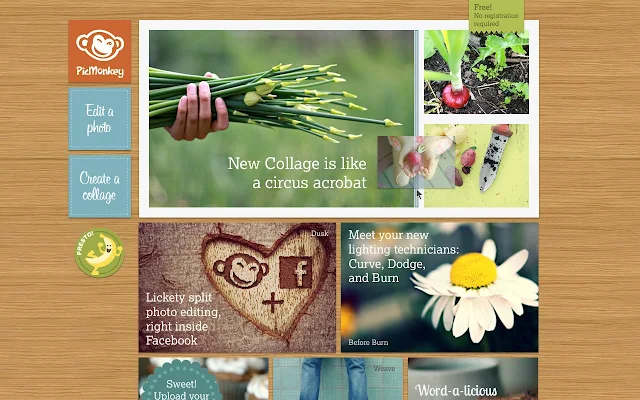
PicMonkey is a free, online photo editing service that has some great features and is a great tool for Chromebook users. PicMonkey is very easy to use. Simply upload or drag and drop a photo onto the site and edit away.

You can crop, rotate, add effects, add borders and text, and manipulate photos with some very powerful and useful editing tools, all online.

The Chrome app is also easy to use and has a ton of features, including Collage, Touch-Up, Teeth Whiten, Fonts, Effects, Filters, Frames, Textures, Stickers and more.

It's an excellent resource for photo editing on a Chromebook. They are also working on a mobile app.


Related:

Great, free Image editing sites and software

Two More Free Image Editing Resources


Thursday, March 19, 2015

Noodle releases list of 32 best free apps for Education


Featured Image
Noodle, a site that provides families with information about schools, tutors, summer camps, study abroad programs, and online learning tools, has just released a list of the 32 best, free apps for education. 

The list covers some apps that I've reviewed before, such as Edmodo, Prezi, Desmos, and Knowledge Graph, but also has some I've never covered. Each listing is set up with "What it is", "Who would love it", "Why it's good", and "Why it's relevant", and "Something you didn't know" providing a quick look at what the app does, the intended audience and how to use it.

The selections were evaluated based on a list of strict criteria, including:
Orientation toward high school or college students
User-friendliness
Design language strength
Ease of use
No-cost options

There are some great apps listed here. Take a look. 

Example of a listing:


Related:


-


Monday, March 2, 2015

Read & Write Text to Speech web app comes to iPad and Android


Cover art

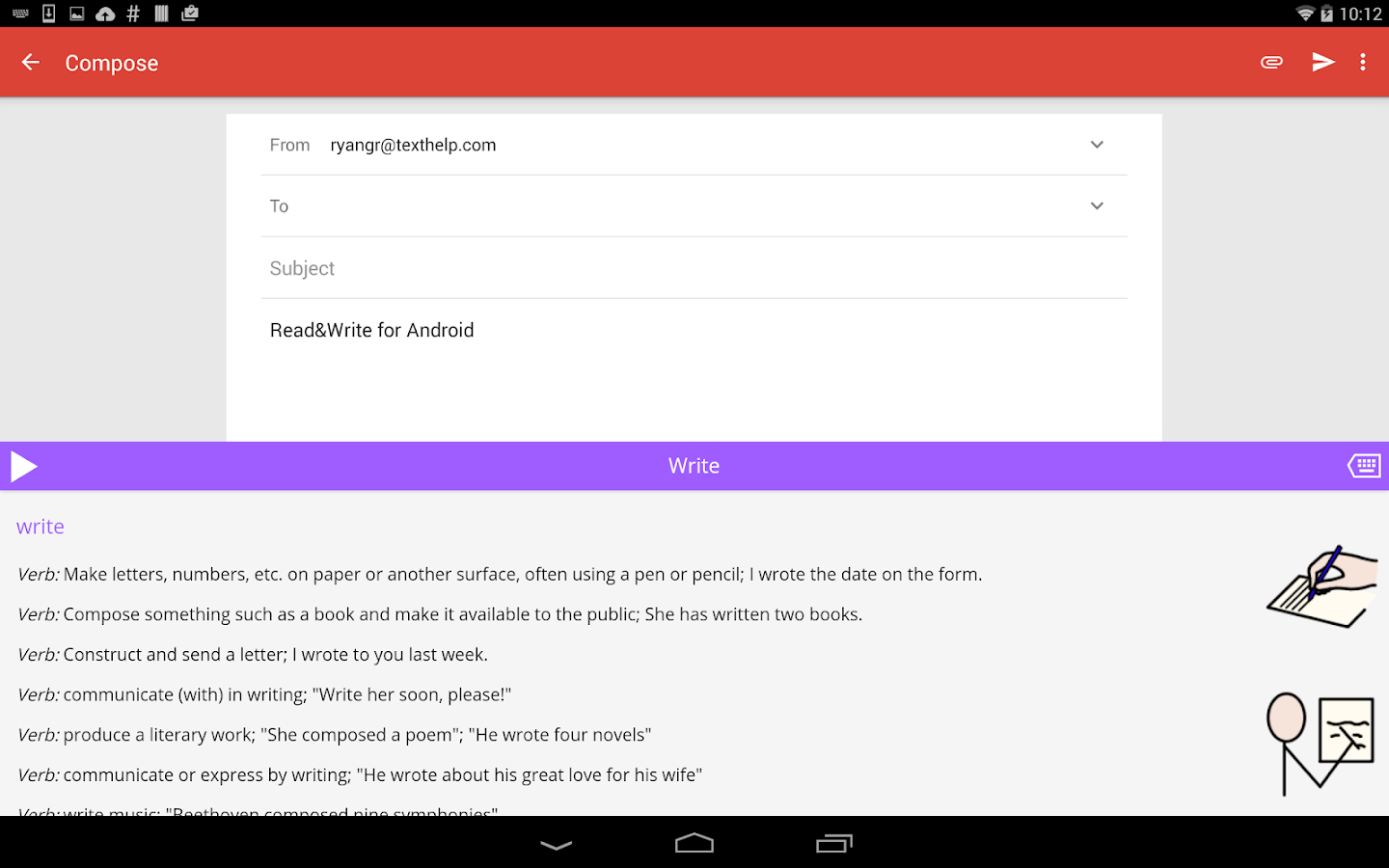
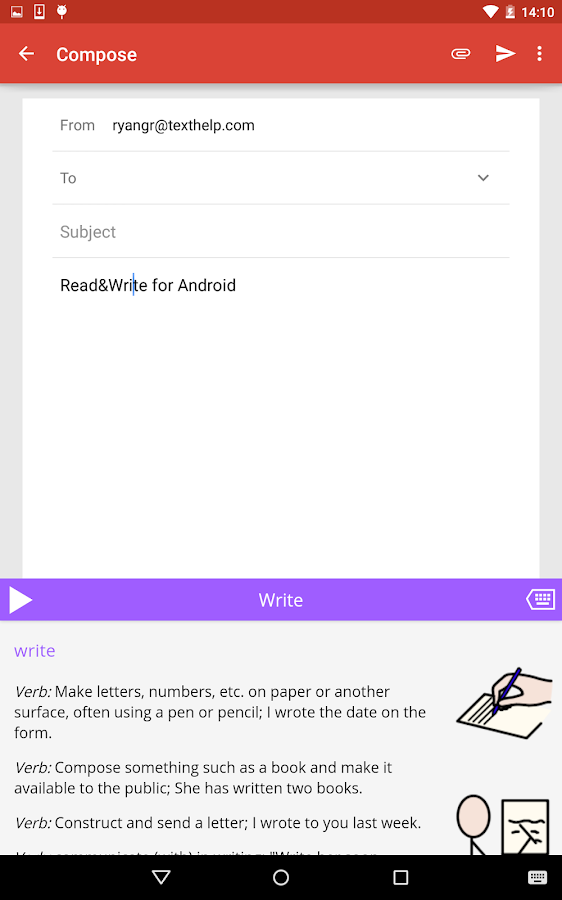
Read and Write for Google is an excellent Chrome app that provides text-to-speech functions from your browser. They have just released a free iPad and Android app.

The apps provide text to speech functions, which are great for ESL, learning disabled, visually challenged and struggling readers, on your device, just like the web app does in the Chrome Browser and Chromebooks.

There are some other features that are available also, either with a fee or by using a Google Apps for Education account.

Read&Write for Android - screenshotRead&Write for Android - screenshot


Related:

Google for Education Resources

Google Accessibility Features in Chrome (OS and Browser)
Android for Education Resources

Evernote Clearly gets Text-to-Speech - premium only
--


Friday, February 27, 2015

g(Math) - insert graphs and math expressions in Google Forms and Docs


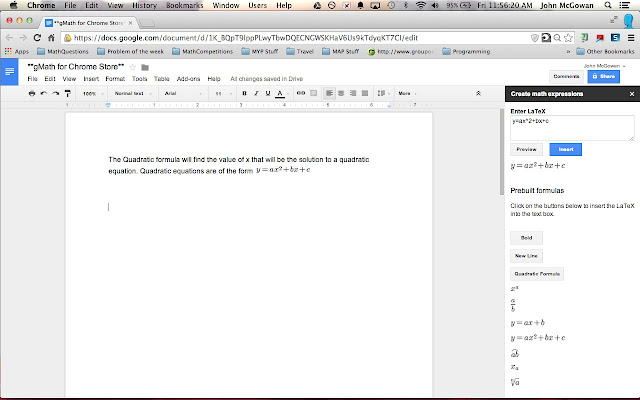
g(Math)is a Google Forms and Google Docs Add-on that allows you to insert graphs and mathematical expressions into your Google Forms and Google Docs. This is very useful for math and science classes and allows teachers and students to better utilize Forms and Docs in class, and for classes using Chromebooks.


PowToon Edu - create awesome presentations and animated videos


PowToon is a free web app that lets you create presentations and animated videos. PowToon Edu is a free Chrome app extension that does the same on Chromebooks and Chrome browsers. There is also an education page.

It's easy to use and there are some great resources on the site to help you learn how to use it. It can be used by teachers to make their presentations more engaging, and by students to create presentations for their projects.

Once your PowToon is created, you can export it to YouTube or download it. The Chrome extension connects to Google Drive.

There are some short video clips to get you started. It's easy to create a presentation using the build in tools and intuitive interface. Many users say it's easier to use than PowerPoint or Prezi. There are built in characters, props, images and animation tools.

PowToon is a free business animation software and PowerPoint alternative


Take a look and try it out.


-


Wednesday, February 11, 2015

BYOD and Web Based Apps, Hosted Apps


BYOD, Bring Your Own Device, is very popular in many schools. Schools save money by having students and staff use their own technology on the schools network. Many schools doing this also have school owned devices for students who don't have their own.

BYOD does present some challenges including security and access to resources and software from personal devices. Solutions include network access control, robust antivirus, and web based and hosted applications.

Security is something that the school/district's IT department will have to address. Network access control systems can lock down your network, as well as scan user devices for harmful viruses and malware and protect your network.

The other issue is access to software. Many things are web based now, allowing users to access them from any device, anywhere at anytime. However, there are many non-web based software applications being used by schools and providing them to all students on personal devices creates issues of installs, licensing and more. This is also an issue if a district wants to allow users, students  and parents to access systems from outside the district.

A solution is to run a virtual desktop system that allows users to access software and systems from anywhere, on any device, just using their web browser. There are a variety of solutions out there, including VM Ware, Citrix and Ericom. These are also useful for allowing Chromebooks to use Windows or Mac applications. They are not free, but are very useful. My district uses Ericom AccessNow to provide access to Windows applications on Chromebooks. This includes running a virtual session of Internet Explorer for a few legacy systems that only run on IE. Simply login to the portal from any browser, and click on the application you want,

Here is an infographic from Ericom with some more information:


http://www.ericom.com/education.asp

--


Monday, February 9, 2015

Chrome (Browser and Chromebook) Extensions - my favorites and recommendations


I am a heavy user of Google Apps including Chrome and Chromebooks. These are the extensions that I use and feel are some of the best and most useful and consider a must have for all Chromebook users. Title of extension links to Google Play store. Link at end of entry is to other articles on how to use it.


Extension
Clearly - Clearly makes blog posts, articles and webpages clean and easy to read. Save them to Evernote to read anywhere. - great for students as it eliminates distractions on the web pages and makes it easier to read and understand. Evernote Clearly


Extension
Evernote Web Clipper - Use the Evernote extension to save things you see on the web into your Evernote account. - save web sites, online files and more. A must have. Evernote for Education Resources.


Extension
goo.gl, the Google URL shortener - shorten URLs, and share with many different services! - Very useful for sharing links with others, especially if you want them to write it down. Google URL Shortener Features


ApplicationApplicationApplication
Google Docs, Slides, Sheets - create, view, edit and share documents, presentations and spreadsheets with others. Another must have. Google Apps Resources for Education


Application
Google Keep - notes and lists - Quickly capture what's on your mind and share those thoughts with friends and family. - great for quick notes and reminders.  Google Keep Features


Extension
Google Translate - View translations easily as you browse the web. Excellent for ELL students and Foreign Language classes. Google Translate features and languages.


Extension
Office Editing for Docs, Sheets & Slides - View and edit Microsoft Word, Excel, and PowerPoint files with Google Docs, Sheets, and Slides - another must have. Who needs Office anymore?! Google Docs Editing for Office


Application
Pocket - save articles, videos and more to read later. I save things from my Feedly account here to read later and then can save from here directly into Evernote. Pocket is one of my most used Apps.


Extension
Save to Google Drive - Save web content or screen capture directly to Google Drive. Great for saving online files right into your drive account.


Extension
Screencastify - simple video screen capture software for Chrome. Use to record lessons and classes for students to access later. 

Extension
Webpage Screenshot - The most powerful and freeware app for capture entire page, Save & Edit & Annotate & Print & Share - I use this to capture screenshots for blog posts.


Application
WeVideo Next - video creation and editing tools using HTML5. Great tool for using videos on a Chromebook. WeVideo Online Video Editor


Related:

My most used/favorite Apps and how I use them

Contact me if you would like help with deployment, setup or training in Google Apps and/or Chromebooks.

Resources to get Started With Google Apps and Chromebooks

Google Apps and Chromebooks Web App Recommendations - a whole lot!

Google App and Chromebooks Resources - learn how to better use them

Wednesday, January 14, 2015

Graphite - reviews and ratings on apps, games and websites

Graphite is a nice site by Common Sense Media that has reviews and ratings on apps, websites and games for educational use. You can search for them by content, price, platform, grade level, and Common Core State Standard. Each resource is rated by educators too.

Home

If you sign up (free) you can create boards and favorites, review resources and create something called App Flows. This looks like a great resource.

An App Flow is an interactive framework tool that enables teachers to seamlessly flow apps, websites, and games throughout lessons. Starting with the familiar five-part lesson plan, an App Flow provides scaffolding to think with purpose about where, why, and how to integrate digital tools for learning into the curriculum.

The flow follows five teaching components:
Hook
Direct Instruction
Guided Practice
Independent Practice
Wrap Up
Teachers choose individual apps, games, or websites that match each component.


This is a great resource for busy educators looking for apps and websites to use in school.


--

Photopea - free photo editing Chrome App


ApplicationPhotopea

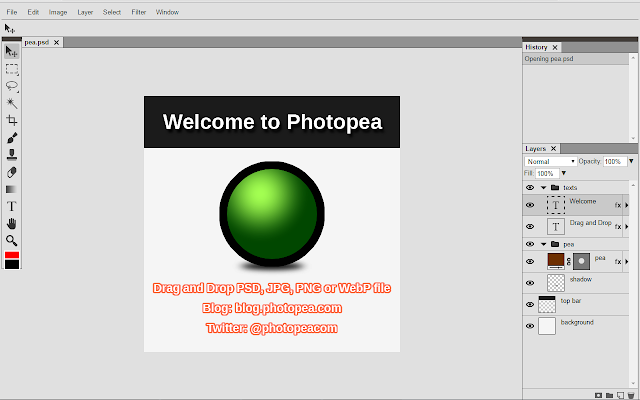
Photopea is a new Chrome App that I learned about from The Tech In blog.  Photopea allows you to open and edit Photoshop and Gimp file formats (PSD, XCF, PSB, and conversions) on a Chromebook. This opens up even more functionality to Chromebooks. 

Photopea is not as full featured as Photoshop or some other apps, but it offers the basics, which is all most people need. It is built with HTML5 and supports layers, layer styles, levels, curves and much more. You can also use it to convert images between JPG, PNG and WebP formats. 


Related:

Resources to get Started With Google Apps and Chromebooks

Google Apps and Chromebooks Web App Recommendations - a whole lot!

Great, free Image editing sites and software

Two Free Graphic creation and editing software

PicMonkey - free online photo editing

Two More Free Image Editing Resources


--

Monday, January 12, 2015

Google Apps and Chromebooks Web App Recommendations - a whole lot!


Google Apps and Chromebooks App Recommendations and Substitutions

Here is a list of Google Apps and Web Apps to use. They are listed by category with some explanations. 


Suggestions for extensions/apps to be preloaded on Chromebooks 
Edmodo        Google Keep - notes and lists        Evernote Web        Adblock Plus        Evernote Web Clipper        WeVideo - Video Editor and Maker
GeoGebra math app         Read&Write -  reading support       EasyBib        Desmos Graphing Calculator

UPDATE - I'm taking Adblock Plus off of the list - it causes issues with online testing and assessment systems. 


A to Z of Google Services


Find Apps for Chromebook - great resource to find apps to use with  Chromebooks 


A great list of Apps and Extensions for Education


Google Classroom - new resource for teachers to manage classes, assignments, student work, and to communicate with students.
https://sites.google.com/site/dmagafeandchromebooks/How-to-Use-in-Classroom/google-classroom


Google Launches Google Connected Classrooms - take free virtual field trips with your students


Evernote: create and organize everything: clip content from websites, take written and audio notes, organize notes and files, share notes and more
There is a desktop app, mobile apps, web app, and extensions for Chrome.


Edmodo is a great resource for teachers, students, and parents, allowing communication, collaboration and sharing. It has forums, messages, files, calendar, and more to create an online presence for your class.  http://educationaltechnologyguy.blogspot.com/2012/09/edmodo-first-year-using-it-with-my.html 


Apps by Task you want students to do: Click to enlarge or right click to download.


10 Free Learning Websites for Kids


51 Great Tools for educators and students to use
http://www.edutopia.org/blog/the-epic-byod-toolchest-vicki-davis 

Richland School District Two 1TWO1 Digital Starter Kit http://goo.gl/g3vnnR
Excellent collection of web apps, sorted by category, with lots of information and ideas for using the web apps in class. This district has been 1-1 with Chromebooks for quite a while with a lot of experience.

PreK-2 Digital Starter Kit: http://goo.gl/UGpPM7

Chromebook and Classroom Power-Tools, tips and extensions 
https://sites.google.com/a/musd.org/chromebook-and-classroom-power-tools/

Google Chrome Apps for Education  http://kcsdtechzone.wordpress.com/google-tools-and-resources/google-chrome-apps-for-education/


Cogs 2

CK-12 - free e-textbooks and more
 - http://educationaltechnologyguy.blogspot.com/2012/03/ck-12-free-e-textbooks-and-more-updates.html 


EduClipper
It's free and allows you to clip and capture anything from the web including articles, links, videos, lesson plans and more. You then create a clipboard to organize what you have clipped and then you can share the clipboards with students, colleagues, the public or just keep it for yourself. Students can use it too and the clipboards are searchable. You can also share your clipboards via different social networks.


PDFescape
read and fill in Interactive PDFs on the Chromebook using the cloud-based reader "PDF Escape": http://www.pdfescape.com/.


Seven Free Online Whiteboard Tools for Teachers and Students
http://www.freetech4teachers.com/2014/01/seven-free-online-whiteboard-tools-for.html#.U3FRW_ldWhs

Chromebook Apps and Extensions for Elementary Teachers


3 Simple Ways to Zip and Unzip Files on a Chromebook

Take Your Reading Offline With These 5 Chrome Apps


Application
Geddit free web-based student response system for gaining valuable information about student understanding. Real time feedback from students for formative assessment. http://educationaltechnologyguy.blogspot.com/2014/08/geddit-web-based-student-response-system.html 


Office


Notetaking
  • Google Keep http://educationaltechnologyguy.blogspot.com/2013/03/google-keep-note-taking-service-launched.html
  • Evernote notetaking and bookmarking http://educationaltechnologyguy.blogspot.com/p/evernote-for-education.html
  • Google Drive Docs can also be used for Note taking
  • MoveNote - Ever wish you could hear what students were thinking or trying to develop when they wrote a paper or constructed a lab report? MoveNote makes that possible by giving students the ability to add video and audio descriptions to their products right in Google Drive. The process is so simple! Once you select the document, and open MoveNote, the camera will automatically launch. Students can then begin recording additional information or ideas to their documents or presentations. As MoveNote calls it, it is ‘Presentations with Emotions.’ All this for free on the Chrome Web Store. Teachers can use MoveNote to explain directions to individual students, making it easier to differentiate instruction. The possibilities are limitless – and the reasons why I have made MoveNote one of my top picks for the Chromebook classroom.For more information watch this short video from MoveNote. https://www.youtube.com/watch?v=PN8XY2Ouudk    https://www.movenote.com/


Extensions for Google Chrome browser and Chrome OS


Research/Web Search:
Google Search: 


Curricular Materials:

PBS Teachers Activity Packs - free lesson resources for educators http://educationaltechnologyguy.blogspot.com/2012/03/pbs-teachers-activity-packs-free-lesson.html

100+ Free Internet Resources for Real Teachers in Real Classrooms http://educationaltechnologyguy.blogspot.com/2011/02/100-free-internet-resources-for-real.html
Mashpedia, the Real-time Encylopedia: excellent resource for research: http://www.freetech4teachers.com/2011/04/mashpedia-real-time-encylopedia-adds.html#.U7P9YZRdXpU 


Lots of free online courses and materials:


Science

Math

Photo Editing (Photoshop)
Social Studies


ELL Resources

5 Good Apps for ESL / ELL Students: http://www.freetech4teachers.com/2014/03/5-good-apps-for-esl-ell-students.html#.Ux75Qj9dWN0 


Foreign Language

10 Good Sites & Apps for Learning a New Language


Video


Screen Casting
ScreenCastify - A Screencasting Option That Works on Chromebooks http://www.freetech4teachers.com/2014/02/screencastify-screencasting-option-that.html#.UwSuIGJdWN0


Tech Ed

5 (five) 3D Modeling, Engineering, and Architecture Apps for Chrome (the rest on the site are for iOS) - great, free apps to use on Chromebooks -  http://www.hansenslinktotech.com/2014/07/10-3d-modeling-engineering-and.html 


Autodesk AutoCAD 360 - Autodesk® AutoCAD® 360 is a free, easy-to-use sketching and drafting app that enables you to quickly view, create, edit, and share drawings using your web browser. https://chrome.google.com/webstore/detail/autocad-360/dcjeclnkejmbepoibfnamioojinoopln 


Music

Students can compose short songs using:
"UJAM - Make your music.": https://chrome.google.com/webstore/detail/ujam-make-your-music/apdiogojbmdncjdpljocafnigiokgmci?utm_source=gmail

They can practice notation and ear training using:
"Music Notation Training"
: https://chrome.google.com/webstore/detail/music-notation-training/baflflhaeoafhbeiioodmdmjohkoalio?utm_source=gmail

They can learn the piano keyboard using:
"Color Piano!":
 https://chrome.google.com/webstore/detail/color-piano/ihmigmmflfcbhdpdgbkkeojchjhhphnh?utm_source=gmail

Online Guitar App
"ButtonBeats Guitar"
: https://chrome.google.com/webstore/detail/buttonbeats-guitar/mkcpeekapbmklcidenkpbjcpcicmjmnf?utm_source=gmail


Drawing
10 Excellent Drawing Tools for Teachers and Students http://www.educatorstechnology.com/2013/11/10-excellent-drawing-tools-for-teachers.htmlGoogle Drawings - part of Google Docs

See "Tech Ed" for CAD


Computer Science


Audio


Virtual Labs and Simulations:

Miscellaneous


Typing/Keyboarding

  • typingweb.com – this site offers straightforward tutorials and typing practice games. It allows you to choose to learn in several different languages and if desired you can earn an official typing certification. However, you must register if you want to track your progress.
  • Sense-Lang’s Balloon Game – Once you get the basics down, this game is great for teaching you how to type without looking at the keyboard.
  • Typeonline -The typing tutorials on this site also include lessons on how to use a keyboard number pad for those who may need to enter a lot of numerical data.
  • Typeracer – You can improve your speed on this site by entering typing races with your friends or others from around the globe. If you are motivated by fun and competition then this is the site for you.


LinkWithin

Related Posts Plugin for WordPress, Blogger...